
AI video generation is powerful, but failed generations are still one of the biggest frustrations. A product can suddenly change shape, a reference image can be ignored, or a detailed prompt can turn into a video that only follows the general idea but misses the actual shot plan.
That is why I wanted to test HappyHorse 1.0 from a more practical angle: can it reduce the kinds of mistakes that usually waste time, credits, and creative energy?
In this hands-on test, I used HappyHorse 1.0 in three different ways: first with a single DJI Pocket 3 product image to check product consistency, then with five reference images to test multi-angle product understanding, and finally with a text-only cafe prompt to see how well it follows multi-shot camera directions.
Test 1: Image-to-Video: Product Consistency
To test whether the HappyHorse1.0 model can turn a single DJI Pocket 3 product image into a cool 5-second promo video suitable for product showcasing, I ran a quick experiment.
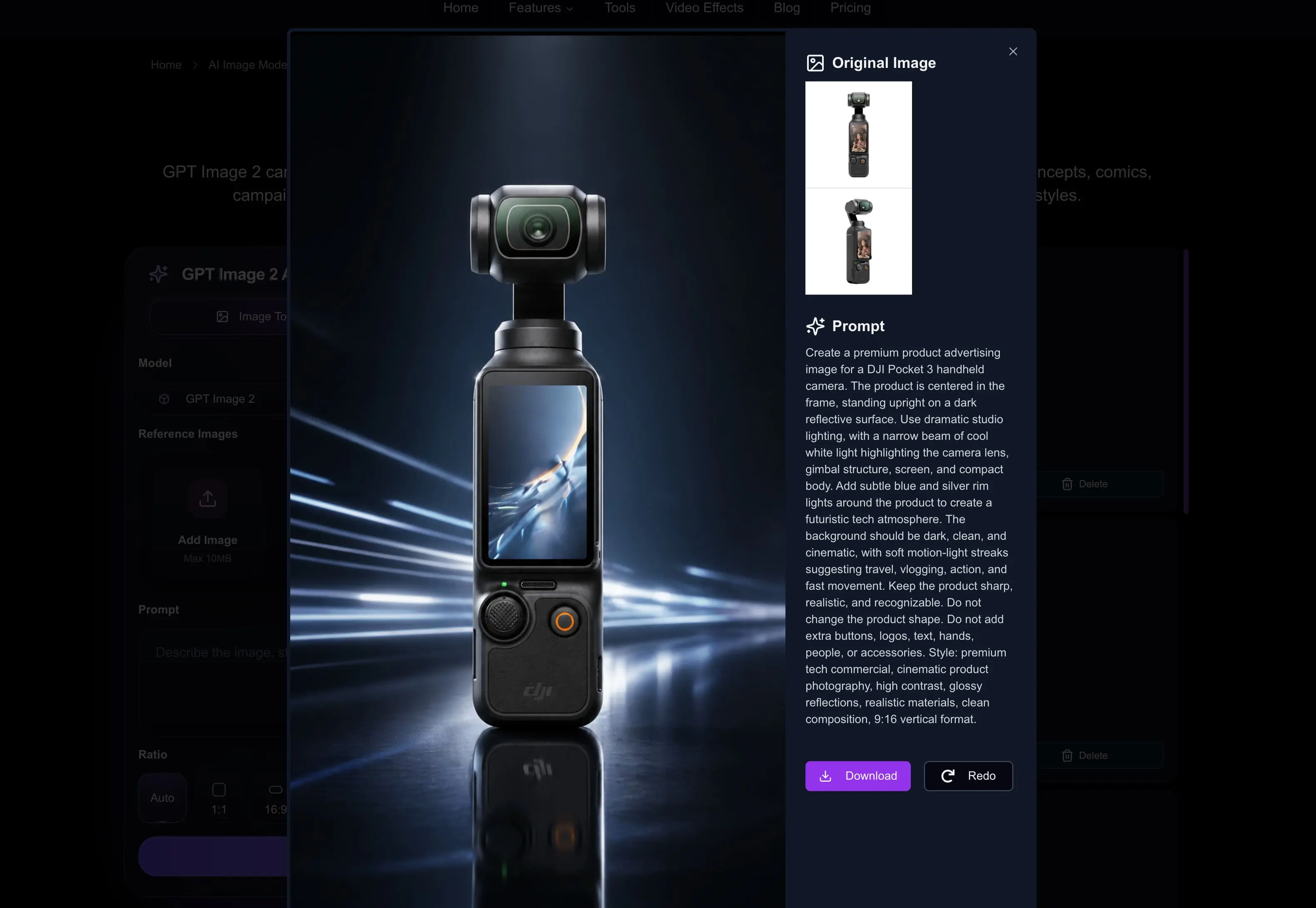
For the sake of stability, I did not just throw the product image directly into the video model and leave it to chance. Instead, I first used GPT Image 2 to generate a polished product ad image, then used that image as the first frame for the video, and finally fed it into HappyHorse1.0 to generate a 5-second clip.
I opened Lanta AI's AI Video Generator page in my browser and selected the Image to Video mode from the left-hand panel. Then I uploaded the DJI Pocket 3 product reference image that had been generated with GPT Image 2. In the interface, you can see that the HappyHorse1.0 video model supports uploading up to 9 reference images. In this test, though, I only uploaded one image as the reference.
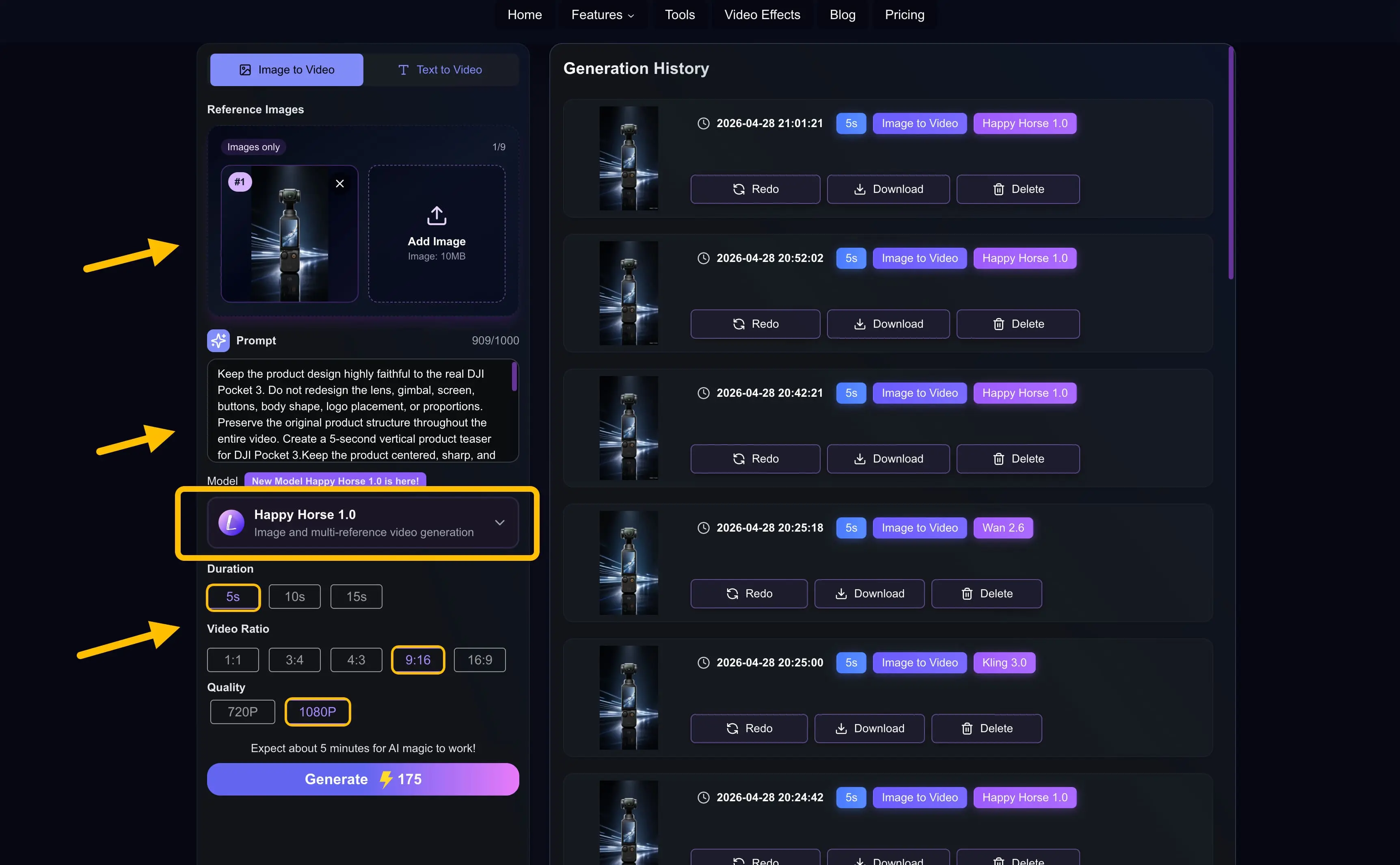
Next, I entered the following prompt into the prompt box. One thing to note is that the prompt needs to stay under 1000 characters.
Keep the product design highly faithful to the real DJI Pocket 3. Do not redesign the lens, gimbal, screen, buttons, body shape, logo placement, or proportions. Preserve the original product structure throughout the entire video.

Create a 5-second vertical product teaser for DJI Pocket 3. Keep the product centered, sharp, and highly accurate throughout the video. Do not redesign the product, and do not change the lens, gimbal, screen, buttons, or body proportions.

Camera movement: start with a medium-wide product shot, then slowly push in toward the lens.
Lighting: use dramatic studio lighting with cool blue rim light and a soft white highlight sweeping across the lower half of the product body.
Background: dark, minimal, futuristic background with subtle blue light streaks and glossy floor reflections. Style: premium tech commercial, cinematic product showcase, clean ecommerce ad look, smooth motion.
For the video settings, I chose:
- Model: HappyHorse1.0
- Duration: 5s
- Video Ratio: 9:16
- Quality: 1080P
This generation costs around 175 credits. After everything was set up, I clicked Generate to start the process. In reality, I waited about 3-4 minutes, and then got a cool-looking DJI Pocket 3 promo video like this.
Looking at the final result, the DJI Pocket 3 stays right in the center of the frame. The black background, blue light streaks, cool-toned highlights, and reflective floor all work together to bring out the tech feel you would want for a digital imaging product like the DJI Pocket 3.
Throughout the whole video, the shape and proportions of the camera remain stable. The lens, gimbal, and screen all stay in the correct positions, and the logo is also nice and clear. There is no obvious product distortion or weird AI-style redesigning going on.
At the same time, the camera movement is very smooth. There is a clear push-in movement, which helps guide the viewer's attention toward the key parts of the product.
Test 2: Multi-Image Reference Video Generation
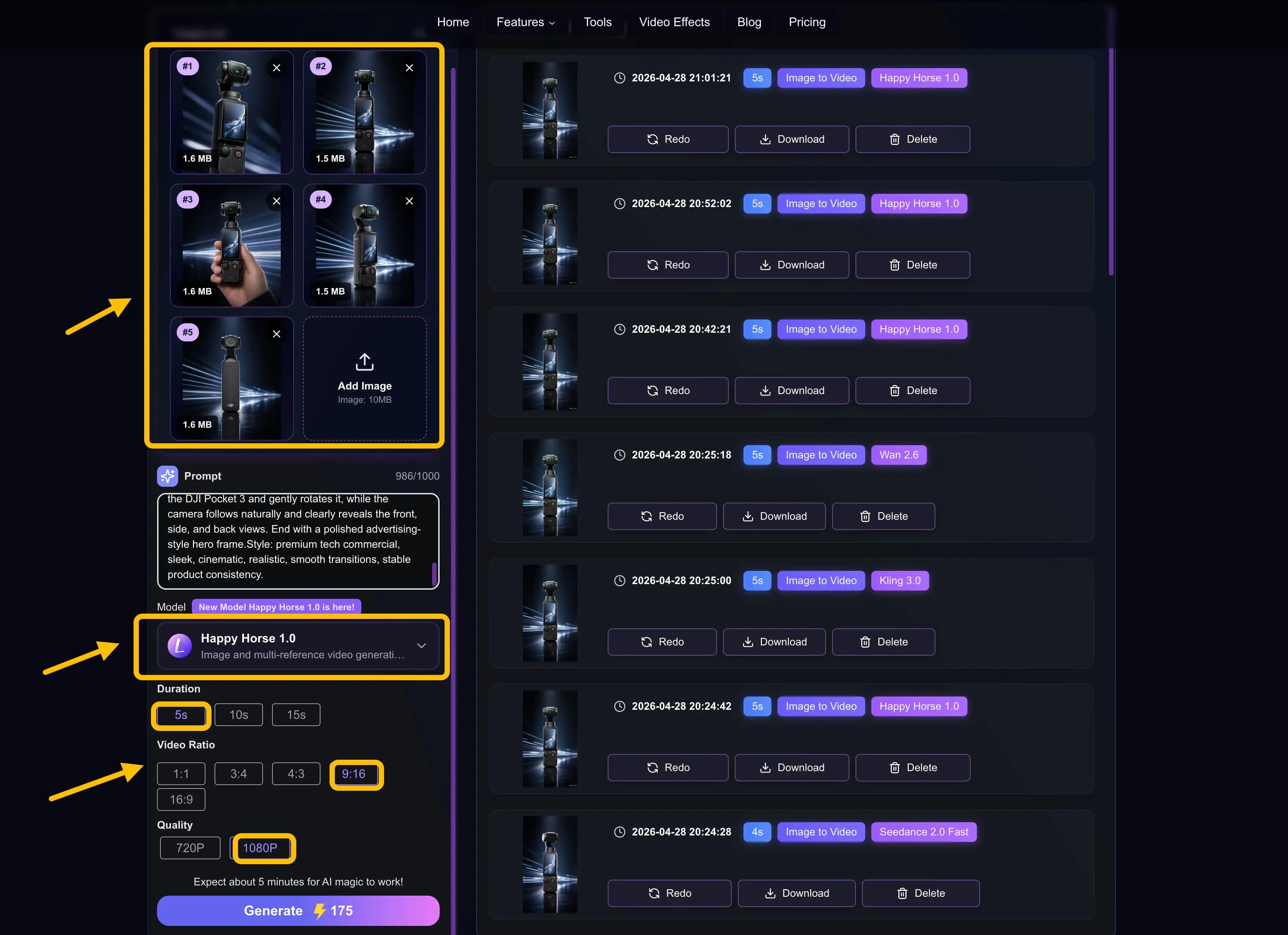
Next, I wanted to take the test a step further and see how well HappyHorse 1.0 handles multi-image reference video generation. This time, I uploaded five DJI Pocket 3 images from different angles, including a straight-on front view, several angled side views, a handheld view, and a rear view. The goal was to see whether the model could understand the same product from multiple perspectives and then bring those views together in a single generated video. At the same time, I wanted to see if the video could naturally show the front, side, and back of the product while the camera was moving.
After that, I repeated the same workflow as before: I entered the prompt in the text box, set the parameters, and generated the video. And this is the result I got.
In the final result, the shot slowly moves from the front view to the side, then reveals the back view and even a handheld-style view of the DJI Pocket 3, making it feel like a complete product showcase. You do not need to manually shoot the product from multiple angles, and you do not need to edit the footage yourself.
Based on the reference images, the AI video generator can automatically create a short video with smooth transitions and changing angles. This is especially useful for ecommerce ads, product teasers, and short-form social media videos.
Test 3: Text Prompt Accuracy and Multi-Shot Motion
For the final experiment, I used text-to-video only to test HappyHorse 1.0's Text Prompt Accuracy and Multi-Shot Motion. I entered the following prompt into the text box:
Create a realistic cinematic multi-shot video of a young barista making a latte in a warm, cozy cafe. Keep the same barista, beige apron, espresso machine, coffee cup, and cafe environment consistent across all shots. The main goal is to follow the prompt accurately, show clearly different camera movements in each shot, and keep the transitions between shots smooth and natural.

Shot 1: a wide establishing shot of the cafe, with the young barista standing at the espresso machine. Use a slow dolly-in camera move.
Shot 2: a medium side shot with slight tracking, showing the barista locking the portafilter into the machine and starting the espresso extraction.
Shot 3: a close-up shot of espresso pouring into a cup, followed by milk being poured to begin latte art.
Shot 4: a top-down or hero shot of the finished latte on a wooden table, with clear latte art and a subtle orbit or elegant overhead movement.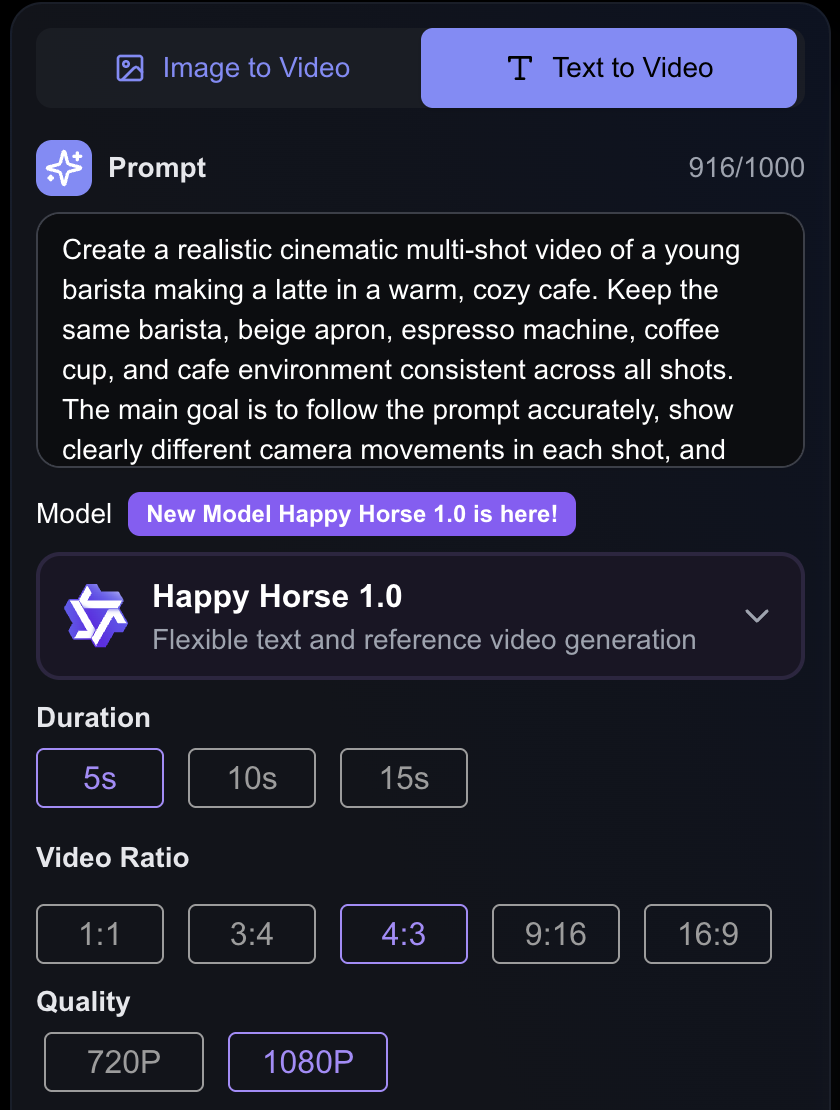
For the video settings, I chose:
- Model: HappyHorse1.0
- Duration: 5s
- Video Ratio: 4:3
- Quality: 1080P
Text-to-video takes noticeably longer to generate than image-to-video. I waited about 5 minutes and got a video like this: a barista making coffee in a cafe.
I did not give HappyHorse 1.0 any reference images, so both the character and the setting were entirely imagined by the model itself. In terms of text prompt accuracy, though, the result was still pretty solid. The warm cafe atmosphere, the young barista, the apron, the coffee machine, the cup, and the latte-making process all showed up, and overall the video stayed on theme without drifting too far off.
What I was most happy with was how well HappyHorse 1.0 understood the shot structure in the prompt. In the final video, you can clearly see the layering created by the different shots: a wide establishing shot, a medium side shot, a close-up shot, and a top-down or hero shot. It managed to switch between multiple shots within just 5 seconds.
To me, this test shows one of HappyHorse 1.0's biggest strengths: it can understand fairly complex shot planning, create smooth transitions, and try to organize those shots into one coherent video.
What HappyHorse 1.0 Still Struggles With
That said, after testing it, I would not say HappyHorse 1.0 can generate a final, ready-to-publish video perfectly every single time. Its visuals and shot-planning ability can be genuinely impressive, but when the video involves real products, close-up human subjects, or longer continuous motion, you still need to review the result carefully.
For example, in product videos, the model may sometimes redesign small product details, so the result may not be fully identical to the real product. The same goes for human videos. Short clips are usually more stable, but if the movement becomes more complex or the shot runs longer, small changes can still appear in the face, hands, clothing, or other details.
What Is HappyHorse 1.0 Best For?
Short-Form Video Creators
If you make TikToks, Reels, Shorts, or social ads, HappyHorse 1.0 is worth testing.
Short-form video needs fast hooks, strong visuals, vertical formats, and quick variations. That is where HappyHorse 1.0 works well.
It is not built to tell a full story from start to finish. It is better at creating one strong visual moment: a product close-up, a cinematic move, a teaser shot, or a clip that can stop someone from scrolling.
Ecommerce Brands
HappyHorse 1.0 also fits ecommerce teams.
Most brands already have product photos. What they often lack is enough video content for ads, landing pages, product pages, and social media.
With the right reference image, one product photo can become a vertical teaser, a studio-style showcase, a lifestyle draft, or a simple motion asset for a product page.
That makes it useful when you need many creative variations but do not want to shoot every idea from scratch.
Ad Creators
For ad creators, the main value is speed.
Before building a full campaign, you need to test hooks, scenes, products, styles, and formats.
HappyHorse 1.0 can help at that early stage. It lets you see if a visual direction has potential before you spend more time on editing, production, or campaign polish.
Concept Artists and Storyboard Creators
HappyHorse 1.0 can also help with visual planning.
If you have a static frame, a product concept, or a storyboard image, it can turn that still image into a moving preview.
That helps when you need to pitch a scene, plan a campaign, or see if an idea works in motion. It will not replace a full production workflow, but it can make the early concept stage faster and more visual.
Final Take
After these three tests, HappyHorse 1.0 feels like a strong option for reducing some of the most common AI video generation failures.
It is not a magic button that guarantees a perfect video every time, but it does show strong potential for creators who care about product accuracy, prompt control, and smoother shot transitions.
If you want to try the same workflow, you can use Lanta AI's AI Video Generator to test HappyHorse 1.0 with image-to-video, multi-image reference generation, and text-to-video directly in your browser.
Or jump straight into the HappyHorse 1.0 model page to compare its positioning with the rest of the Lanta AI video model lineup.