
OpenArt Alternatives: Choosing a Tool for Images, Editing, and Short Videos
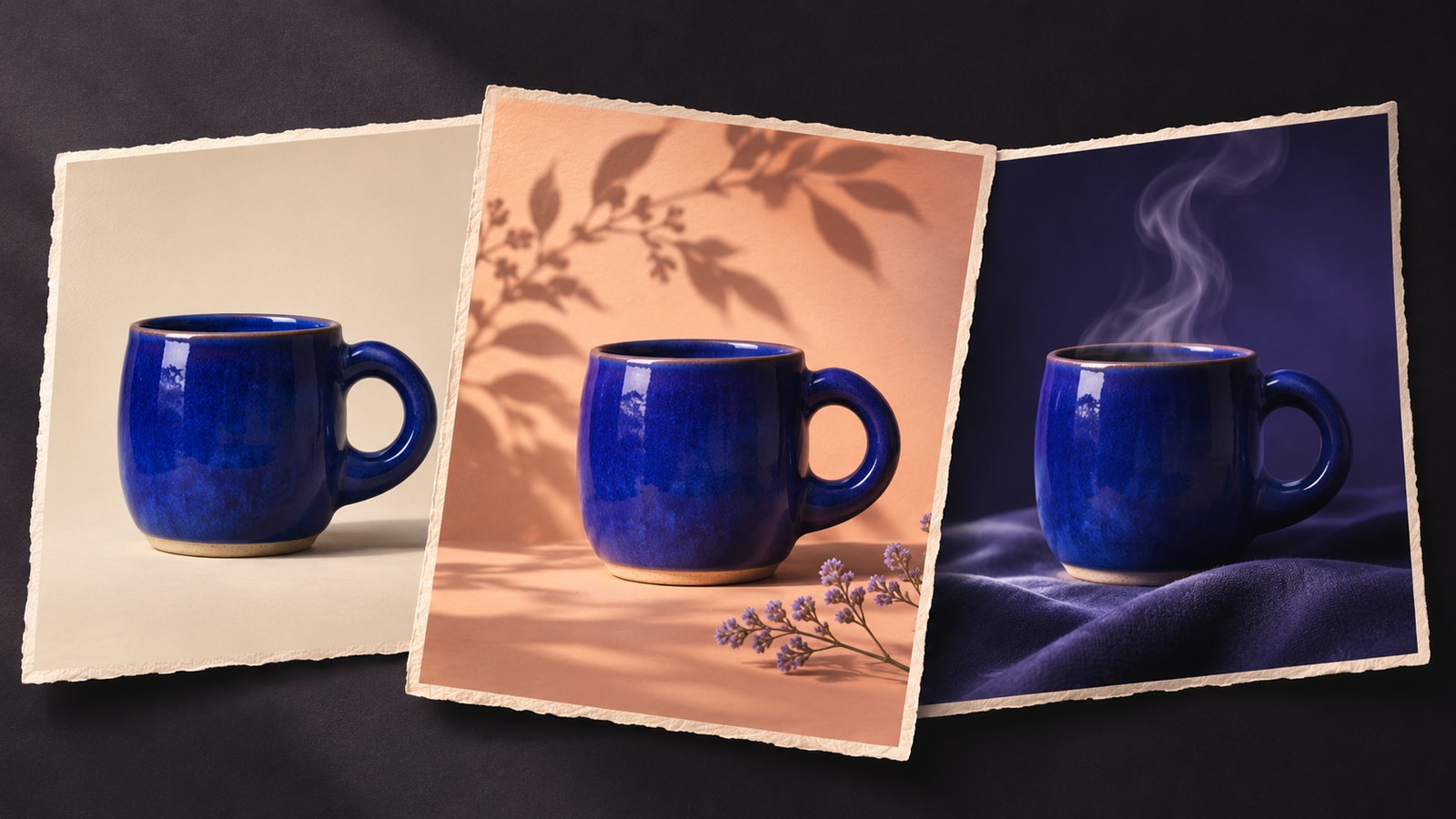
A new poster, a small photo edit, and a short video need different tools. If OpenArt isn't working for you, start with the part of the job you want to improve. You may need a different image style, a more precise edit, or better control over a video shot.
Start with Midjourney for image exploration, Firefly for selected-area edits, Runway for video shots, or Lanta for everyday image and video generation. Here's what working in each one looks like, and where the extra work starts.
On this page
Which OpenArt alternative should you try?
Start with the part of the job you want to improve. You can switch tools for that step without moving your entire project.
Swipe or scroll to see all columns.
| Tool / good fit | Start with | Useful controls | Still to finish |
|---|---|---|---|
| MidjourneyExploring a visual style | A prompt and optional image or style references | Style references, variations, and a web Editor | Exact lettering and final graphic layout |
| Adobe FireflyChanging part of a photo | A photo, a brushed selection, and an instruction | Select the area that Generative Fill should change | Edges, small details, and final layout |
| RunwayDeveloping a video shot | Text or a starting image, depending on the model | Motion prompts, clip length, and aspect ratio | Shot selection, cuts, captions, and sound |
| Lanta AIImages, edits, and short clips | Text or reference images in the relevant generator | Model choice and the settings available for that model | Graphic layout and multi-shot video assembly |
| Keep OpenArtConnected character and story work | Prompts, references, and character assets | Character and multi-scene story workflows | Scene continuity and the final edit |
IMAGE GENERATION
Midjourney: when the image comes first
If your main complaint is that you haven't found the right look, Midjourney is a useful place to try a different direction. Think posters, concept art, illustrations, or a strong opening frame for a video.
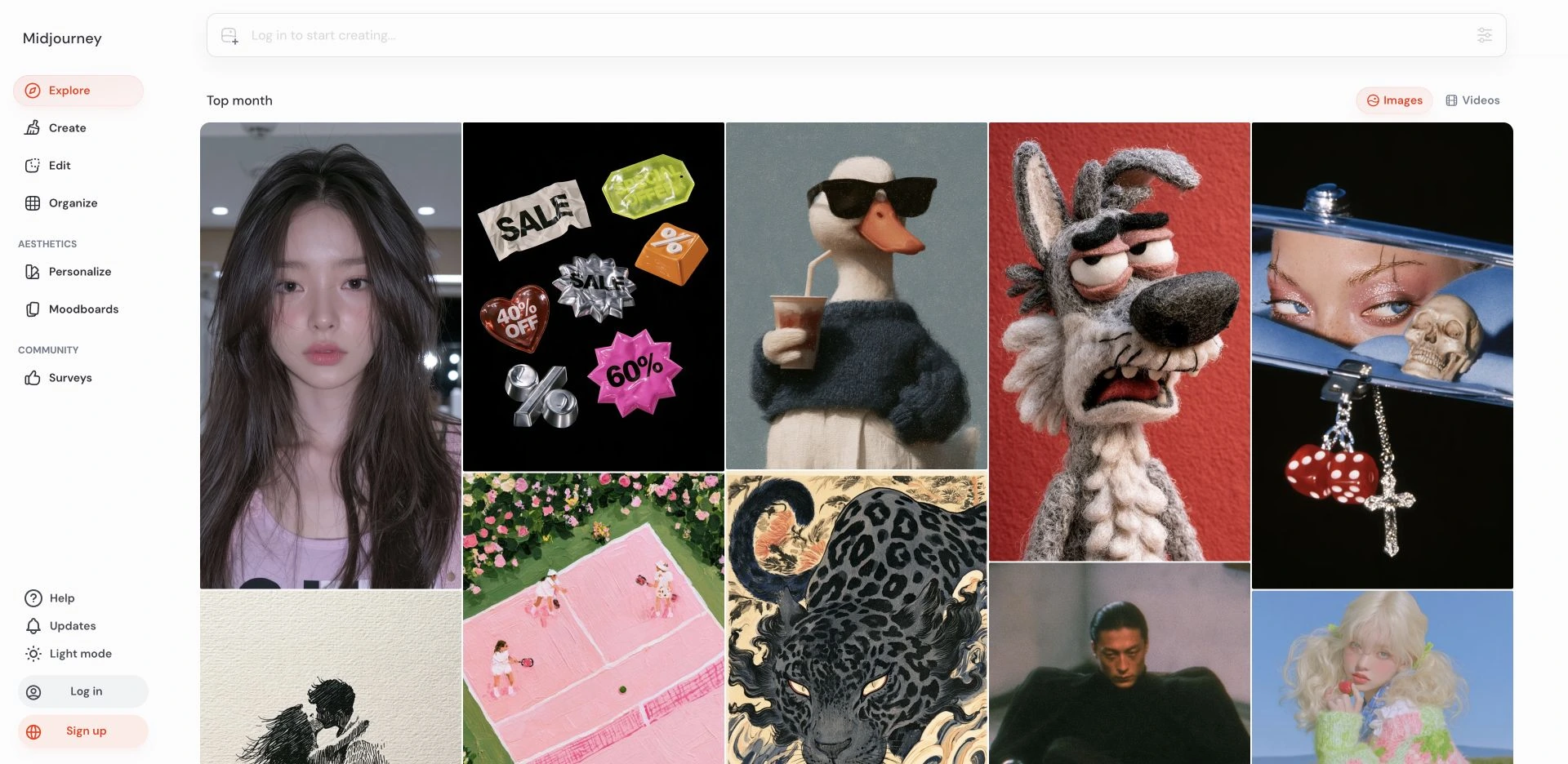
You can begin with a sentence, then add a reference to steer the look. Style Reference is especially useful when you already have a palette, lighting style, or texture in mind. It guides the visual treatment; it doesn't copy the exact objects in the reference.
For example, use a warm, hand-painted reference to guide a cafe poster. Choose the composition first, then add the menu title and prices in your design app. That gives you direct control over text that must be correct.
Midjourney also has a web Editor for uploaded images and local changes. It is worth trying if you like the image already and only need to adjust part of it. For a finished poster or ad, still plan a separate layout step.
Try it for a new visual direction. Keep a design editor handy for precise text and layout.
REFERENCE IMAGE EDITING
Adobe Firefly: when only one part needs changing
You like the photo, but a chair is in the wrong place or the background needs an extra object. Adobe Firefly lets you brush over the area you want Generative Fill to change.
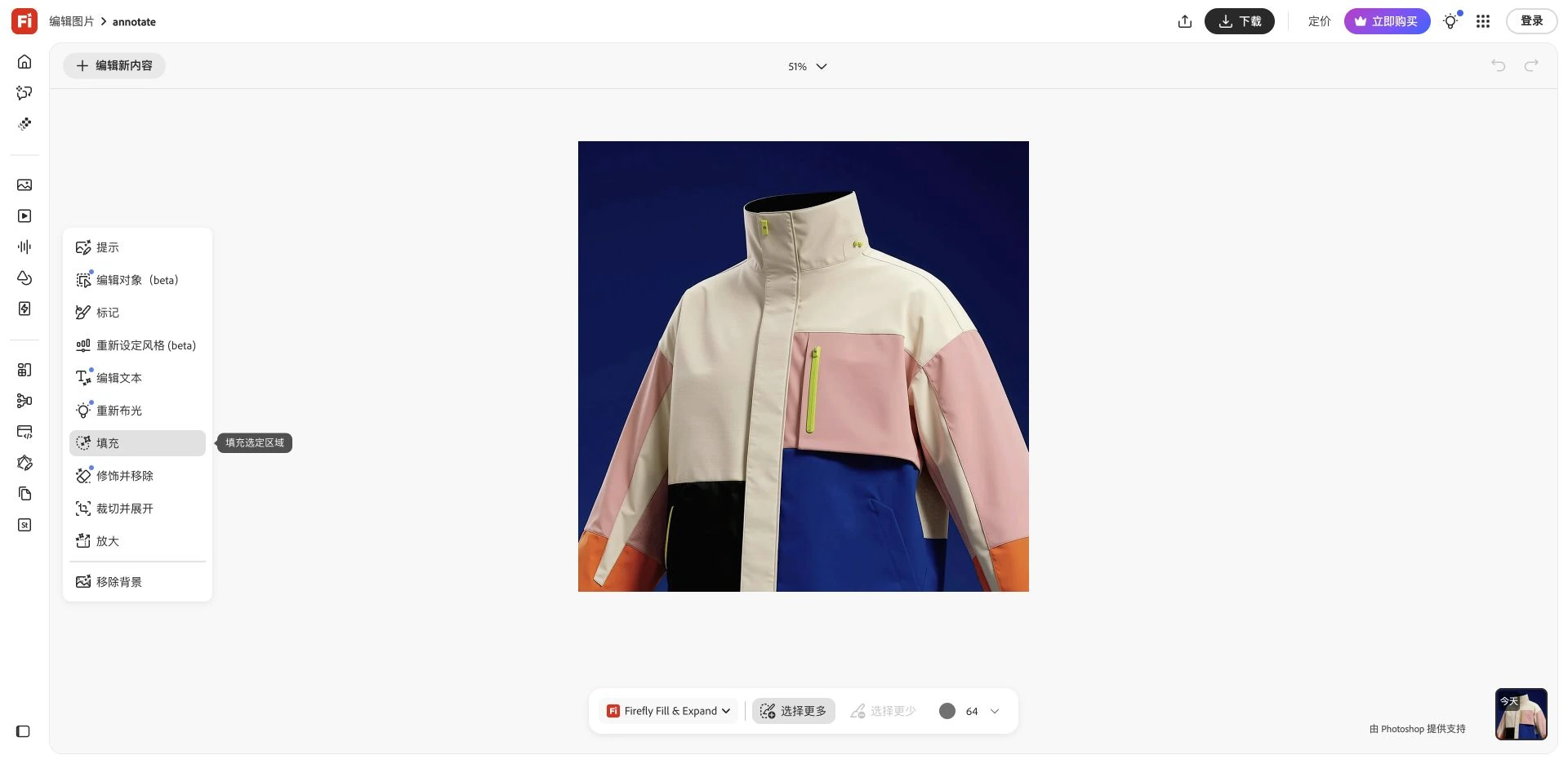
This is a practical difference from uploading a reference and asking for a whole-image change. The selection tells the tool where to work. For a small correction, that can be a better starting point than repeatedly rewriting the entire prompt.
- 1. Select. Upload the photo and brush over the area you want to replace.
- 2. Describe. Say what should appear there, then generate a variation.
- 3. Inspect. Check the border of the edit, shadows, and nearby details before downloading.
Try it for a local edit. A brush selection helps define the change, but edges and details may still need cleanup.
SHORT VIDEO GENERATION
Runway: when you need to turn a frame into a shot
Try Runway if your next job is a video clip. Its Gen-4.5 workflow accepts either a text description or a starting image, with controls for the clip's duration and shape.
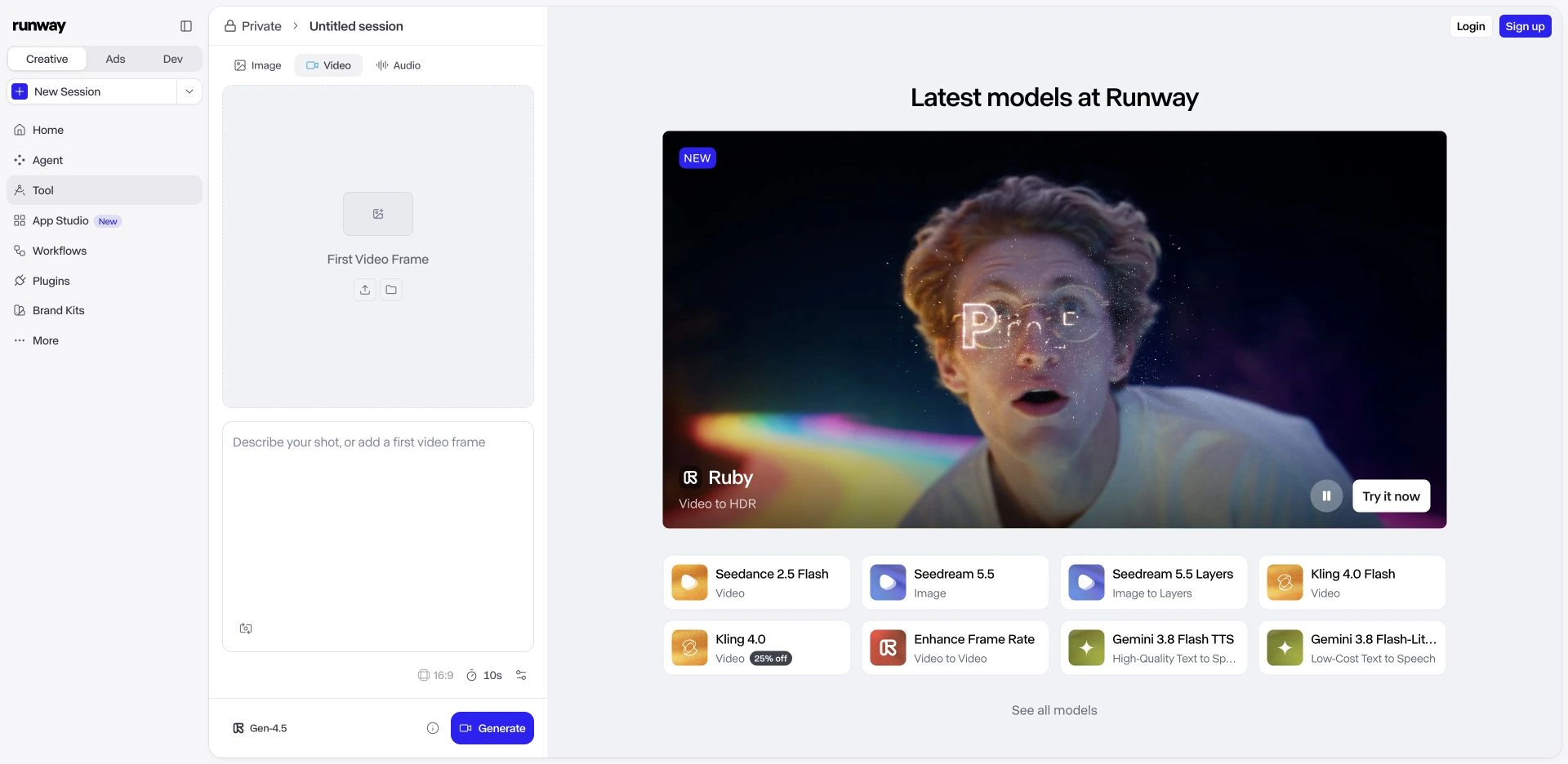
If you already have an approved image, upload it and describe the movement: a slow camera push, a turn of the head, or fabric moving in a breeze. There is less to explain than when you're asking the model to invent the subject, scene, and motion together.
For a product shot, start with one camera move and keep the object still. Review the whole clip for changing shapes or unwanted movement. Once the take works, trim it and add the final captions or sound.
Gen-4.5 requires a paid plan. Runway's free allowance lets you explore selected tools, so don't assume it covers the same workflow or export options.
Try it for a video shot you want to refine. Allow time for selecting takes and finishing the sequence.
IMAGES, EDITS & SHORT CLIPS
Lanta AI: when you work with both images and video
Lanta fits everyday jobs such as making a new image, editing a photo, and turning it into a short clip. Its image generator has text-to-image and image-edit modes, with model choices inside the same form.
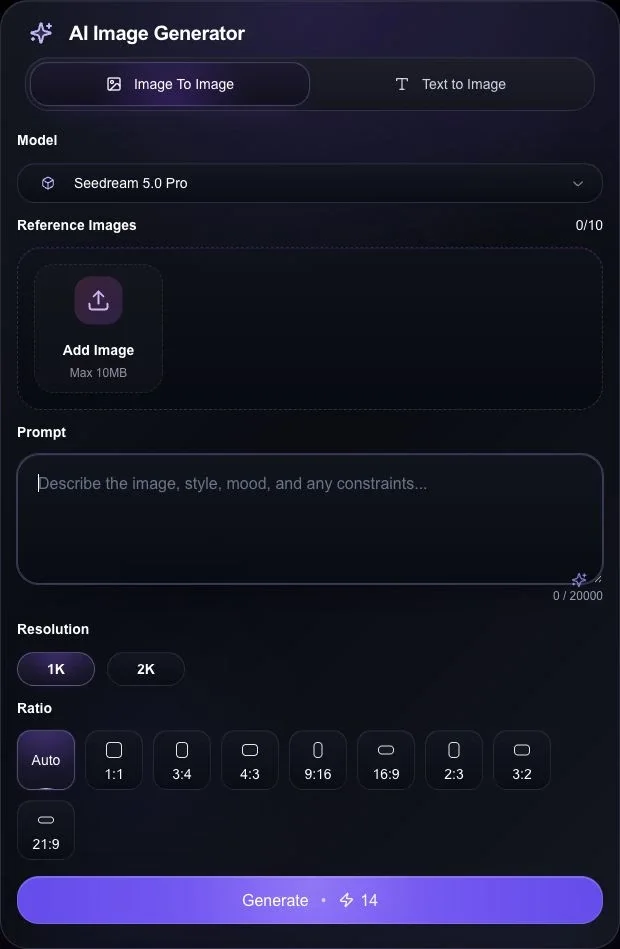
Start with text-to-image for a fresh concept. If you already have a photo, switch to image editing, upload the reference, and describe the change. Check which inputs, ratios, and resolutions your selected model offers before generating.
When the still image is ready, save it and use it in image-to-video. Describe the motion you want and review the displayed credit cost. For a shot without a reference image, start in the video generator instead.
The trade-off is editing depth. Lanta's prompt-and-reference workflow is different from Firefly's brush selection. And generating several clips does not give you a finished story: you still need to choose shots, keep them consistent, and assemble the video.
Try it for individual images and clips. Use a design or video editor for the final layout and sequence.
Choose a model and review the credit cost before generating.
What will it cost to get a usable result?
The subscription price is only part of the bill. A rejected image, another video take, and an upscale can all add to the cost. Compare what you spend to get a file you can actually use.
Swipe or scroll to see all columns.
| Tool | How usage is charged | Download details |
|---|---|---|
| MidjourneyVisit site | A subscription with Fast GPU time. Relax access depends on the plan. | Image downloads are available. Save your final layout separately. |
| Adobe FireflyVisit site | Plan-based credits. Standard and premium generations have different allowances. | JPG and PNG image downloads; size limits depend on the feature. |
| RunwayVisit site | Credits vary by model and video length. Free credits are a limited allowance. | Free videos have a watermark; paid plans offer watermark-free output. Check resolution and format. |
| Lanta AIVisit site | Credits depend on the selected model and settings. Review the quote in the generator. | Download completed results from history. Check your model and plan's output conditions. |
| OpenArtVisit site | Subscription credits, with different costs for models and creative tasks. | Paid plans advertise watermark-free output. Check the size offered by the chosen workflow. |
Check current plans on each tool's website. Annual plans often show a monthly equivalent; check the full commitment before paying.
Count the retries, too
If you generate ten clips and keep two, include all ten attempts when comparing costs. Add any editing time or paid finishing tools. A cheaper plan is only useful if it gets you to the result you need.
When keeping OpenArt is the better move
OpenArt offers image generation, trained characters, video, and multi-scene stories. If you use those together, switching to a single image or video tool can leave you rebuilding part of the process.
Lanta is not an equivalent replacement for OpenArt's trained-character and multi-scene story workflows. It fits the individual image, edit, or clip inside that larger job. Before moving a series, check how you will reuse the character, organize scenes, add narration, and assemble the finished video.
You can also keep OpenArt and use another tool for the one step that isn't working. That is often a smaller change than moving every project at once.
Try one small project before switching
A simple product post is enough to reveal the differences. Use the same subject and brief in each tool.
Make the image
Ask for a blue ceramic mug on a cream background, with room for a headline. Compare composition and the mug's shape.
Change one thing
Give each editing tool the same image and change only the background to navy. Check whether the handle, rim, and framing stay intact.
Add a little motion
Use the same approved image in each video tool and request a slow camera push. Compare the finished downloads, including retries and cleanup.
Choose the tool that solves your actual problem. If you want to begin with an image or reference edit, start there; you can decide how to animate it once the still looks right.
Try your image brief in LantaCommon questions
Is there a free OpenArt alternative?
Some tools offer limited credits or trials, but the model you need or a watermark-free export may require payment. Check those two things first. A free allowance is useful for trying the interface; it may not cover the whole job.
Can I move my OpenArt characters into Lanta?
You can use suitable exported images as references. That does not transfer a trained character, its settings, or an editable story project. Try the character in a few new shots before moving a series.
Can I use one tool for the image and another for the video?
Yes. Download the approved image, upload it to an image-to-video tool, and describe the motion. Keep the same framing where possible. For help with that next step, use our video prompting guide.