
Runway Alternatives for AI Video: Models, Controls, and Workflow Trade-offs
For short AI clips, shortlist Kling for reference and keyframe control, Luma for changing existing footage, Pika for frame transitions and separate creative apps, and Lanta for trying several video models in one generator.
Choose by the shot you need next: a moving product photo, a character speaking, or a change to footage you already have. If you depend on Runway’s editing workflow, replacing the generator alone will leave gaps.
On this page
Which Runway alternative fits your shot?
Start with the input you already have. A first frame fixes the starting composition; a reference image guides appearance; a keyframe specifies a moment in the clip. Those controls do different jobs.
Scroll sideways to see all columns on smaller screens.
| Tool / task | From text | From an image | Reference controls | Audio | Still to finish |
|---|---|---|---|---|---|
| RunwayGeneration + editing | Gen-4.5 prompts | Gen-4.5 first frame | First-frame guidance; Edit Studio for footage changes | Separate audio tools or a model with native sound | Select takes, assemble the cut, mix audio and add captions |
| KlingDirected motion + dialogue | Kling 4.0 prompts | References or keyframes | Omni references OR ordered keyframes; separate modes | Native sound; voice profiles in supported reference workflows | Check speech timing, continuity and transitions; assemble clips |
| LumaChange an existing shot | Ray3.2 prompts | First frame + keyframes | Multiple keyframes, Modify Video and Reframe | Ray3.2 generation is silent; Modify/Reframe retain source audio | Inspect altered areas, add sound to new shots, cut the sequence |
| PikaFrame transitions + creative apps | Pika 2.5 or another model | A photo or ordered frames | Pika 2.5 Frames; other models expose different controls | Pika 2.5 is silent; use an audio model or a separate sound app | Check transitions, select takes and sync any separate soundtrack |
| Lanta AITry models in one generator | Text to Video mode | Image to Video mode | Model-specific references; Seedance 2.0 accepts image, video and audio | Available on supported models; check the selected model’s controls | Download chosen takes; use an editor for cuts, captions and mixing |
Choose the model as well as the platform. Finding the same model name in two apps does not mean both expose the same reference inputs, editing tools or export options.
First, decide which part of Runway you want to replace
Runway is more than a text-to-video box. Gen-4.5 handles text and first-frame generation, while the platform also offers other video models, audio tools and editing workflows. Switching just to get a different model may not require leaving Runway at all.
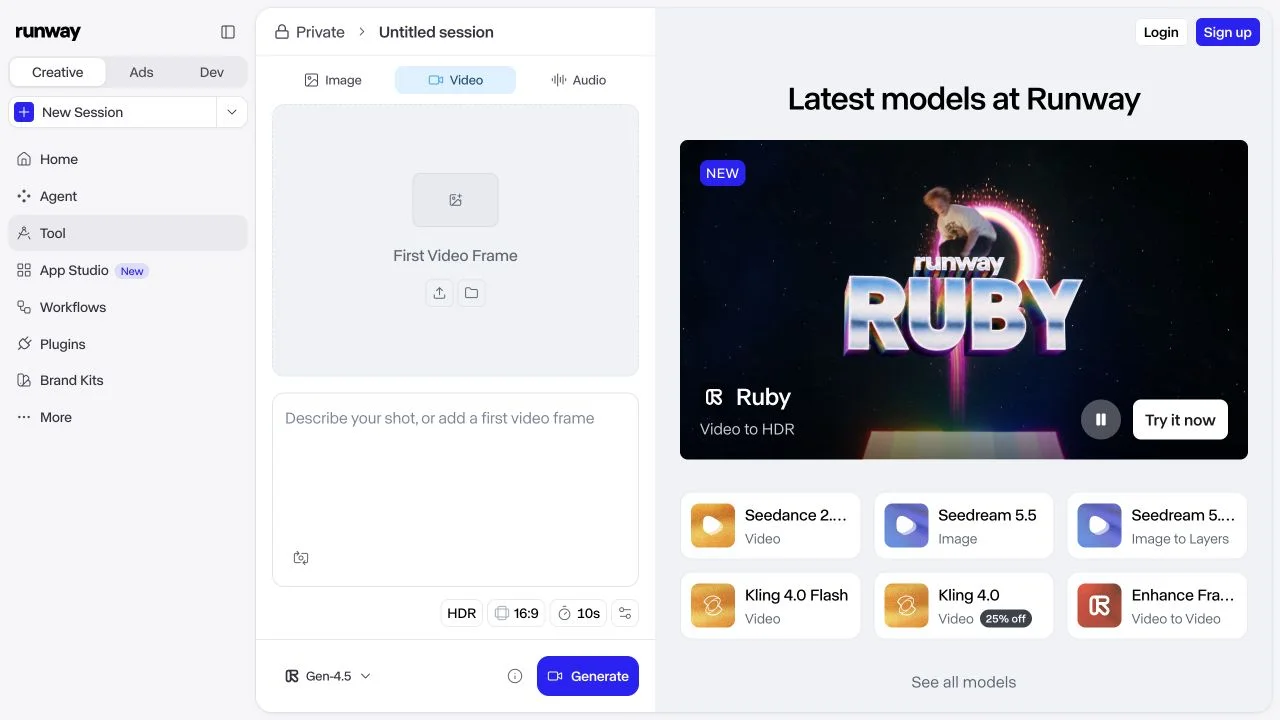
If the problem is the cost of generating a new five-second clip, compare that specific task. If the problem is changing a jacket or background in footage you like, compare video editing instead. A new generation can change the performance you wanted to keep.
Keep Runway on your shortlist if your project relies on Edit Studio’s Aleph 2.0 workflow: edit selected keyframes, then carry those changes through existing footage. Its Agent timeline also lets you arrange and trim clips. Lanta’s video generator does not replace that complete workflow.
REFERENCES & SOUND
Kling: choose between reference assets and timed keyframes
Kling is worth considering when the shot needs more direction than a prompt and one starting image. Kling 4.0 separates two useful approaches: Omni Reference and Keyframes.
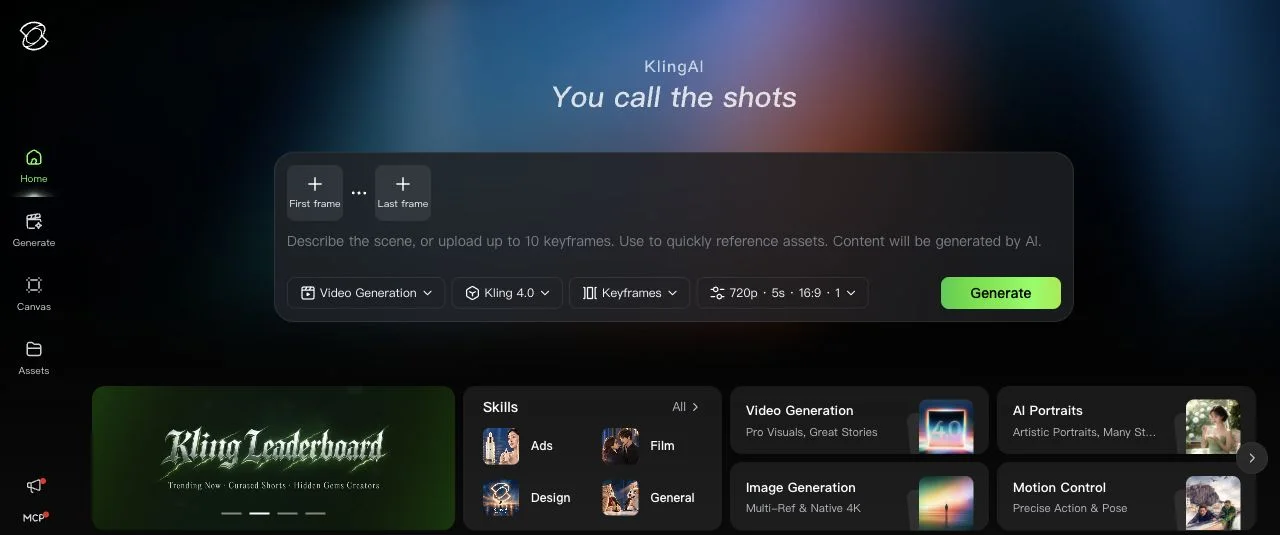
Use Omni Reference to guide a subject, motion or camera with reference assets. Use Keyframes when the beginning, ending or an intermediate moment needs a specific image. They are separate modes, so do not plan a shot that requires both sets of controls in one generation.
For a speaking character, Kling 4.0 supports native audio and voice profiles in supported reference workflows. A voice profile is not a general soundtrack upload. Listen for the right words and timing before deciding a take is usable.
- Use it when
- You can supply useful reference material or define how the shot should begin and end.
- Watch for
- Kling model variants and third-party integrations expose different controls. Confirm the exact mode before preparing all your assets.
FOOTAGE & KEYFRAMES
Luma: change footage you already want to keep
Luma is a useful candidate when you already have the performance or camera movement and want to change the look. Ray3.2 combines new-shot generation with Modify Video and Reframe workflows.
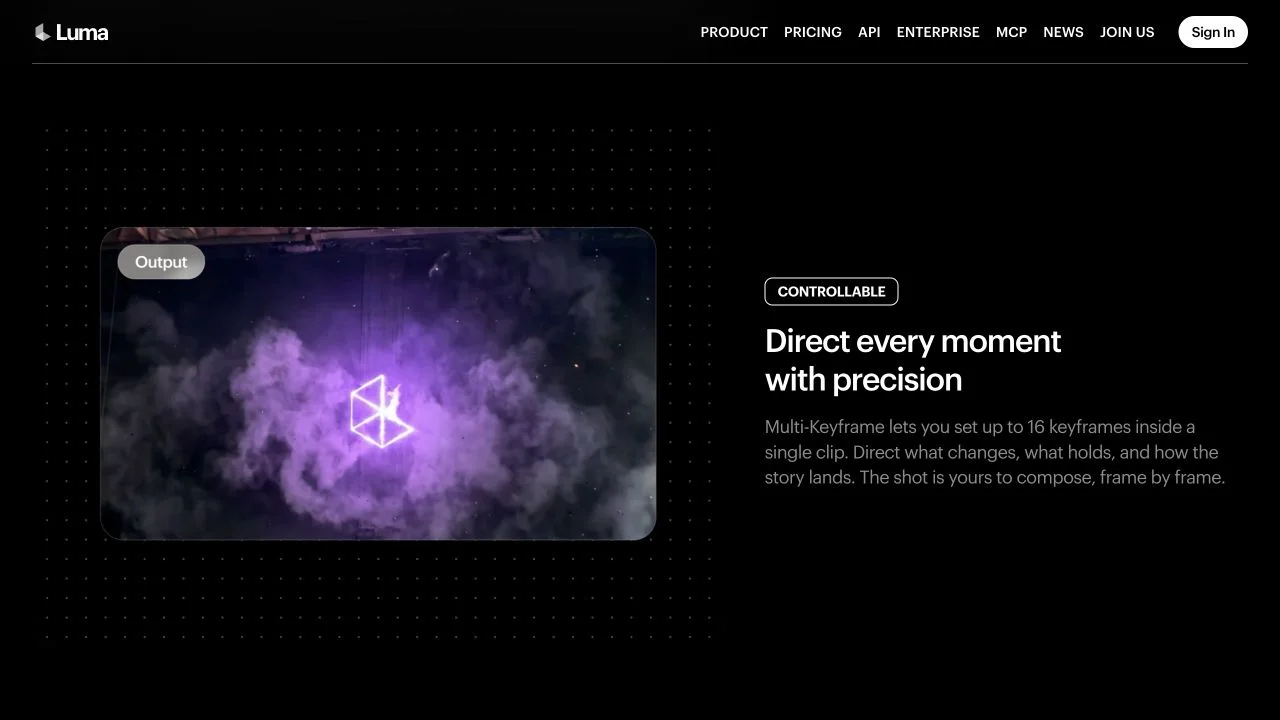
Multiple keyframes can specify how a shot develops. Modify Video starts from footage; Reframe changes the framing for another aspect ratio. Inspect changed objects, edges and motion before building the rest of your edit around the result.
Audio needs a separate decision: Ray3.2 text-to-video and image-to-video outputs are silent. Modify and Reframe preserve the source audio. HDR and EXR workflows also have different credit costs from a standard SDR clip.
- Use it when
- You need to transform existing footage, direct several moments, or prepare different framings.
- Watch for
- Budget sound for newly generated Ray3.2 shots. Keep HDR, EXR and footage-editing quotes separate from a basic image-to-video quote.
FRAMES & CREATIVE APPS
Pika: start with a shot or a sequence of images
Pika now includes a multi-model Video Studio alongside its creative apps. Pika 2.5 is one option within it, rather than a name for everything the platform can do.
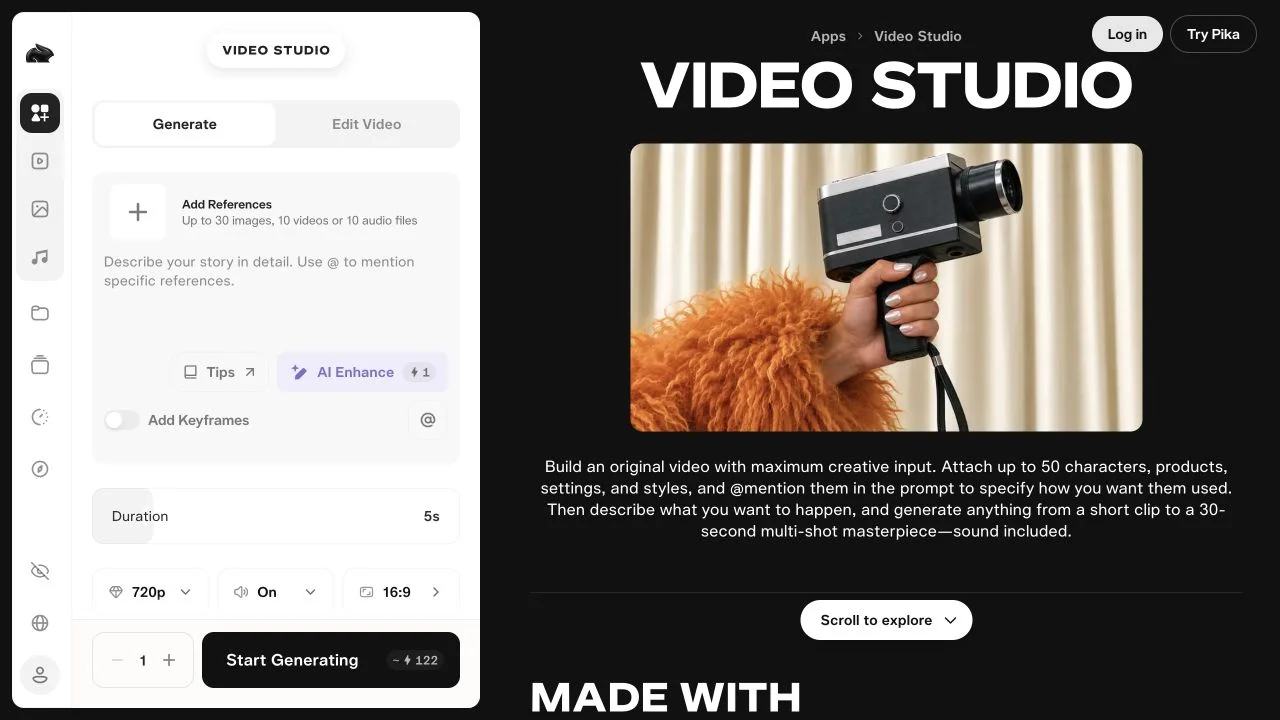
For a straightforward shot, Pika 2.5 accepts text or a photo. Its Frames mode takes two to five ordered images and generates the transitions between them. That suits a planned visual sequence; it still needs a check for unwanted changes between frames.
Pika 2.5 renders are silent. You can add sound separately with Pika’s audio apps or choose a different video model with native audio. Those are different jobs with different charges. Do not use a Pika 2.5 quote to budget an audio-on Seedance clip.
- Use it when
- You want to animate a photo, connect planned frames, or combine separate video and sound apps.
- Watch for
- A platform-level feature list does not describe every model. Check the selected app, duration and audio mode together.
MODELS IN ONE GENERATOR
Lanta AI: compare video models in one place
Lanta’s AI video generator puts Text to Video and Image to Video in one place, with choices including Lanta 2.1, Kling 4.0 and Seedance 2.0. It fits the part of the job where you need a short shot and want to compare model options.
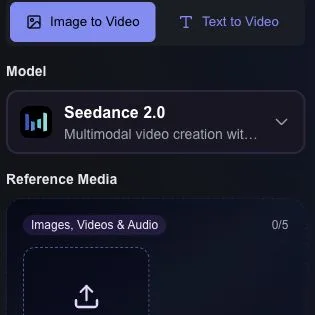
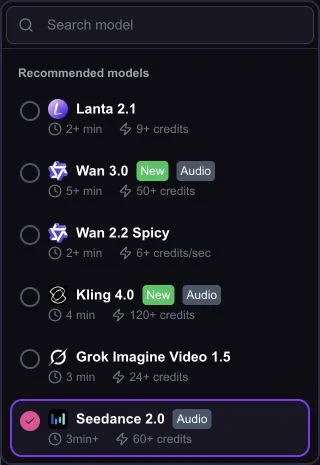
If you have an approved still, start with image-to-video and describe the movement. For richer references, the Seedance 2.0 form accepts images, video and audio. Available durations, resolutions and sound controls change with the model.
The integration matters. For example, Lanta’s Kling 4.0 reference inputs accept images and video; that is not the same as getting every voice-profile or element control in Kling’s own app. Check the form, not just the model name.
Download the selected take, then use your editor for sequencing, captions, branding and the final sound mix. If your Runway project depends on Aleph edits, its timeline or a specific professional export, keep those steps in your migration plan.
- Use it when
- You are generating individual clips and already have an editor for the final video.
- Watch for
- Changing models can also change supported inputs and the credit quote. Recheck both before generating.
Start with one shot. Set the input, duration and resolution before reviewing the credit quote.
Compare the cost of the same five-second shot
A monthly subscription price does not tell you what your shot costs. Use the same first image, five-second duration and 720p output, with standard color, no added audio and no upscaling. Budget three attempts so a second or third take does not come as a surprise.
USD, monthly billing, checked November 13, 2026. Three attempts are a planning allowance, not a predicted success rate.
Scroll sideways to see all columns on smaller screens.
| Platform / model | Monthly plan basis | One take | Budget for 3 takes |
|---|---|---|---|
| RunwayGen-4.5View plans | Standard · $15625 credits/month | 60 credits | 180 credits≈ $4.32 of the plan |
| LumaRay3.2 · SDRView plans | Plus · $3010,000 credits/month | 100 credits | 300 credits≈ $0.90 of the plan |
| PikaPika 2.5View plans | Starter · $10600 credits/month | 20 credits | 60 credits≈ $1.00 of the plan |
| Lanta AILanta 2.1View plans | Pro · $201,600 credits/month | 20 credits | 60 credits≈ $0.75 of the plan |
Allocated cost = monthly fee ÷ included credits × credits used.
These dollar amounts assume you use the full credit allowance. They are not individual checkout prices: you still pay the subscription fee. Equal duration and resolution also do not mean equal output quality.
The Luma row supplies a first image; its no-keyframe surcharge is excluded. Extra sound, HDR, upscaling and reference-video inputs can change other quotes. For Kling, open the generator and check Billing Rules for your exact model and mode before comparing it.
Check export conditions before paying. Runway Standard lists watermark removal. Pika Starter includes watermark-free downloads and a commercial license. Luma Plus includes commercial use. The Lanta row uses Pro, which lists both watermark-free output and a commercial license; do not assume every lower-priced tier has the same terms.
Give each tool one clear shot to make
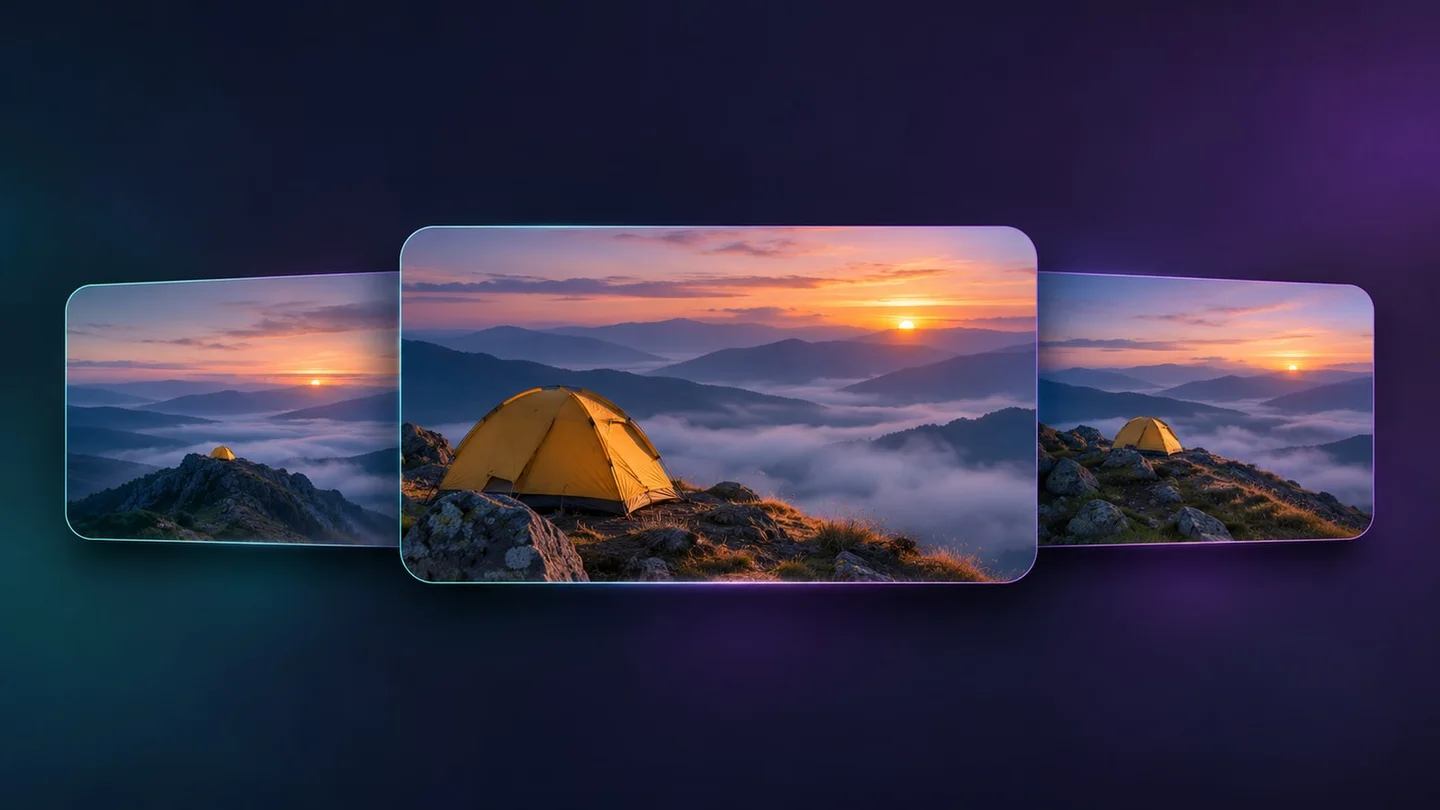
A repeatable brief is more useful than asking each app for something different. Try a five-second landscape shot: a yellow tent on a rocky ridge, with a slow camera push and mist moving in the distance.
Choose text or an approved first frame
Use text when the composition is still open. Use one clean image when the tent, colors and framing must stay recognizable. For an image-to-video comparison, upload the same image each time.
Lock the settings before comparing quotes
Choose 720p, five seconds and no added audio where supported. If a model has different native duration options, record that as a separate quote instead of pretending the jobs match.
Ask for one movement
Keep the scene and subject steady; direct the camera or the subject. Adding a scene change, dialogue and several actions makes it harder to tell what caused a failed take.
Review the whole clip, then finish the edit
Check the tent’s shape, the horizon, camera motion and the last frame. Change one instruction for the next attempt. Trim the chosen take, add the soundtrack and captions, and export from your editor.
Example image-to-video prompt
Slow, steady camera push toward the yellow tent. The tent stays still on the ridge while thin mist drifts through the valley behind it. Keep the sunrise lighting and the same composition. One continuous shot.
If the camera moves too much, simplify the motion instruction before adding more references. The video prompt guide explains how to separate subject, action and camera direction.
Start with the shot you need next
Have a still ready? Open Image to Video in Lanta, choose a model and compare the controls with your brief.
Open the AI video generatorCommon questions about Runway alternatives
What is the best alternative to Runway?
For directed references and native dialogue, start with Kling. For changing existing footage, look at Luma. For ordered image transitions and separate creative apps, consider Pika. For trying several models while keeping your own editing workflow, consider Lanta. The deciding factor is the shot and the controls it needs.
Is there a free Runway alternative?
Treat trial credits as a way to check the workflow, not as a production budget. Lanta advertises sign-in credits, but paid models and settings have separate limits. Pika’s current Free tier uses purchased credit packs and does not include a commercial license. Runway itself offers 125 one-time credits; that does not unlock every paid model. Check the selected model before assuming a free tier can make your shot.
Can a Runway ML alternative replace the whole editing workflow?
Only if it covers the parts you actually use. A short-clip generator can replace a generation step while leaving footage edits, shot assembly, sound mixing and delivery elsewhere. List any Aleph edits, timeline steps and required export formats before moving a project.
Can I use the same prompt in every video tool?
Reuse the creative brief, then adapt the instructions to the input mode. Text-to-video needs the scene and motion described. With an approved first frame, focus on movement. Reference and keyframe modes need assets assigned to the right controls, not just mentioned in the prompt.