
Unlucid AI Review: Image-to-Video, Effects, and Usage Limits
Unlucid AI is worth considering for short clips from a photo and ready-made visual effects. Choose Video AI to describe the motion, Effects AI to apply a preset, or Smart Edit to change the still image first. These are separate jobs, with different controls and costs.
The main tradeoff is how much you need to know before committing Gems. Public examples show each workflow, but they do not settle every upload, aspect-ratio, or export requirement. If you need an exact delivery format, confirm it in the selected studio before paying. For a small creative experiment, start with one image and one short clip.
Animate an image with Lanta AIOn this page
Image-to-video or a fixed effect?
Use the amount of control you need to choose the entry point. A motion prompt describes what should happen over time. An effect preset supplies the action for you. An image edit changes a picture without turning it into a video.
Video AI: describe the motion
Video AI starts with an image and a motion prompt. It fits a camera move, a small gesture, or another action you want to describe yourself. The starting picture supplies the subject and scene; the prompt directs movement.
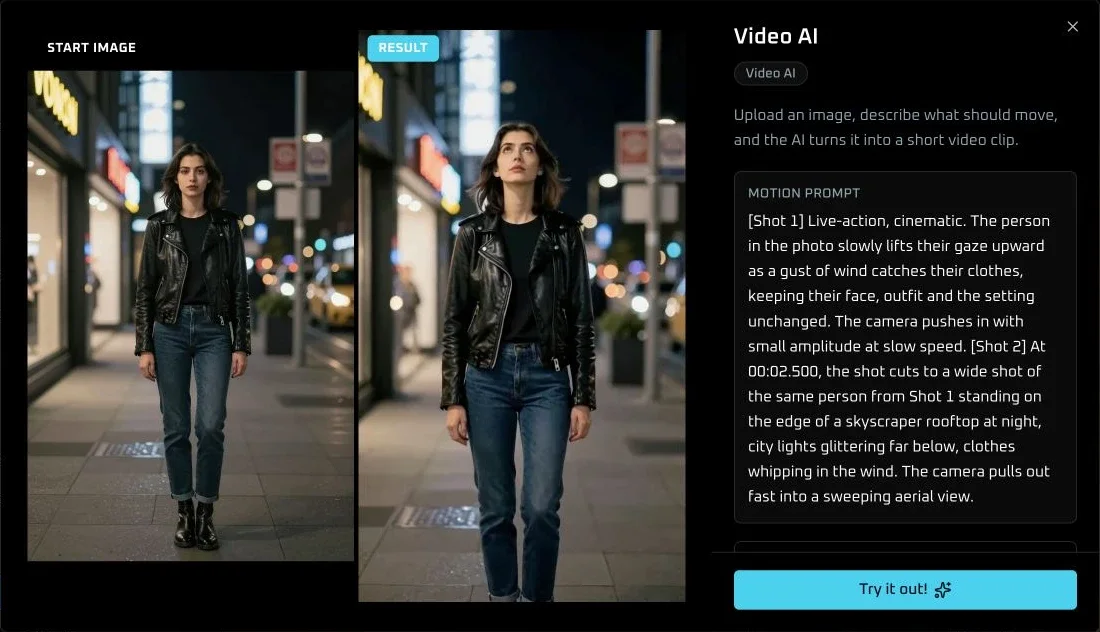
Choose this for a specific movement. A prompt gives direction, but it does not guarantee that every detail will stay unchanged.
Effects AI: choose the action
Effects AI takes one image and applies a selected preset without a motion prompt. Squish, for example, is a named transformation. This is useful when the preview already matches the result you want; it is less suitable when you need to direct a different sequence of actions.
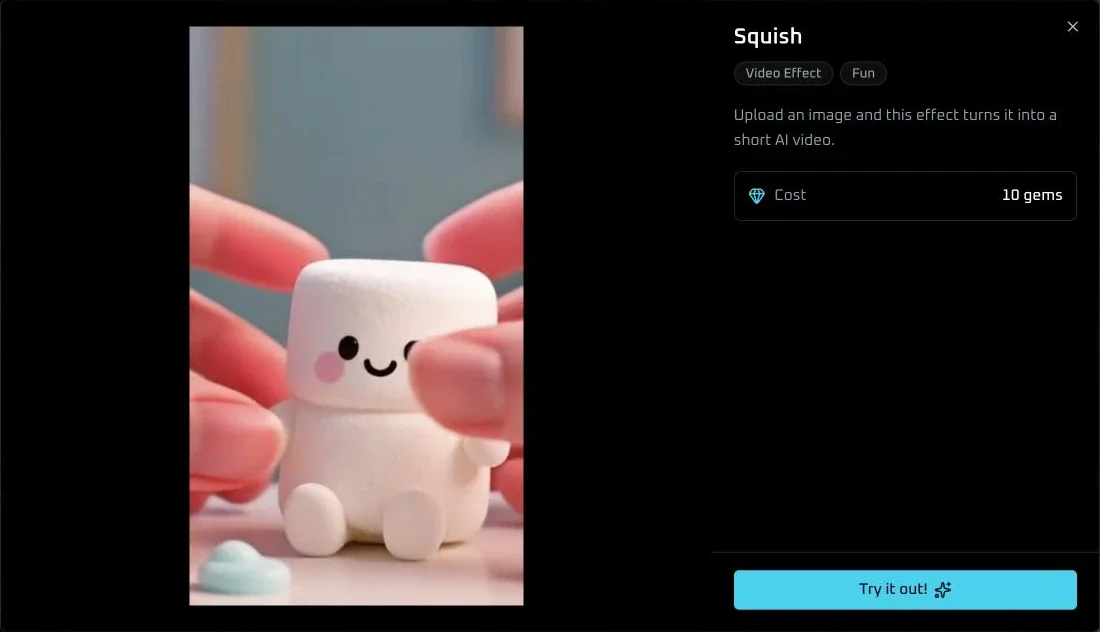
Choose the effect first, then an image that suits it. Clear outlines and space around the subject matter more than writing a longer prompt.
Smart Edit: change the still image
Smart Edit uses written instructions to change an image without masking. Its public preview describes support for up to four reference images. Use it when the background, appearance, or style needs changing before animation. Simple Edit is a separate image-editing entry; neither should be confused with a video effect.
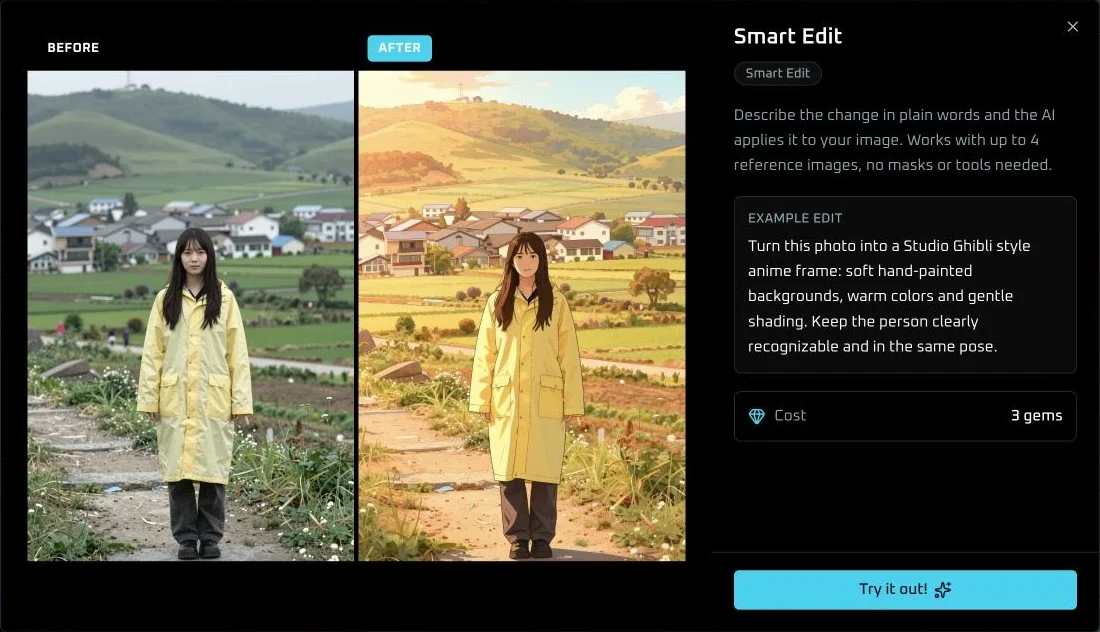
Finish the still image first. Making a scene change and a complicated motion change at the same time makes it harder to identify what went wrong.
Inputs, aspect ratios, length, and export limits
Check the exact workflow you intend to use. A setting described for Video AI should not be assumed to apply to every effect or image editor. The studio requires sign-in, so the public examples are useful previews, not a complete specification of its controls.
Swipe or scroll horizontally to compare all columns.
| Requirement | What is established | What still needs checking |
|---|---|---|
| Input and references | Video AI: image + motion prompt. Effects AI: one image + preset. Smart Edit: up to four reference images in its public preview. | Accepted file types, maximum upload size, and minimum image dimensions in the chosen studio. |
| Crop and aspect ratio | The Effects AI tutorial describes a crop step for reframing the input. | Available output ratios, whether they depend on the model or effect, and whether the crop changes the final frame shape. |
| Video length | The Video AI tutorial describes a 5-second default and 7- or 10-second options. Gem bundles advertise unlocking 10-second videos. | The selected model's available lengths and price. Do not apply Video AI's lengths to every preset. |
| Daily allowance | Signed-in users can claim free Gems daily. | The amount available to your account and the cost of your chosen generation; the public pricing page does not state a daily quantity. |
| Resolution and download | The public examples show the result, but do not establish a complete export specification. | Downloaded pixel dimensions, file format, frame rate, and any export restrictions before planning a deliverable. |
| Watermark | The current public bundle descriptions do not state a universal watermark policy. | Whether your chosen output and account tier include a watermark. Do not assume every free or paid export is watermark-free. |
A crop is not an export setting
Cropping changes the part of the source image used. Aspect ratio describes the output's shape; resolution describes its pixel dimensions. A portrait example does not prove there is a 9:16 selector, and a crop step does not prove every ratio is supported. The exact ratio options remain unconfirmed here. If a vertical or widescreen deliverable is essential, check the studio's options and one downloaded file before producing a batch.
How much does Unlucid AI cost to use?
Unlucid's Gems page lists one-time top-ups rather than recurring subscriptions. Purchased Gems do not expire. The listed prices below are in USD, checked November 13, 2026; payment-provider fees may increase the checkout total.
120 Gems
$8.99
USD · one-time
450 Gems
$29.99
USD · one-time
1,250 Gems
$59.99
USD · one-time
Budget by the selected job, not just the bundle
The public Video AI example displays 20 Gems, Squish displays 10, and the Smart Edit example displays 3. These are example prices, not a universal rate card. Check the cost again after choosing the model, effect, and length.
For planning only: 120 Gems would cover six attempts at 20 Gems each, or twelve at 10 Gems each, if the displayed charge stays the same and the whole balance is used for that task. Those are attempts, not guaranteed usable clips. Set aside part of the balance for revisions.
Daily free Gems can help you start, but a daily claim is not unlimited generation. The bundle page ties 10-second video access to a purchase; do not assume a free balance unlocks it.
Plan one useful clip before spending more
For a product-photo experiment, start with one clear object and a gentle camera move. This makes it easier to judge whether the tool preserves the shape and details you need.
Prepare a picture you can use
Use a sharp photo with a simple background. Leave room around the object, and keep important edges away from the crop. If the still needs an edit, finish that before opening the video workflow.
Choose motion or a preset
Open Video AI for a custom camera move. Open Effects AI only if a named preview matches your intended action. Sign in, then check the offered duration, framing controls, and Gems cost before generating.
Describe one small movement
For Video AI, try the example below. Replace the subject and details with those in your own photo. For a fixed effect, concentrate on selecting and framing the input instead.
Example motion prompt
A slow camera push toward the ceramic mug. Soft steam drifts upward. Keep the mug's handle, printed design, table, and lighting unchanged. One continuous shot with no cuts.
Check the whole clip and the downloaded file
Look at the beginning, middle, and end. Check that the handle, edges, and printed details stay recognizable, the subject stays in frame, and the movement serves the shot. Then inspect the file's dimensions and watermark status. A good-looking preview alone is not enough for a delivery requirement.
- Too much movement? Reduce the prompt to a single action and a smaller camera move.
- Subject cut off? Reframe with more space before spending on another run.
- Wrong transformation? Reconsider the preset or move to a prompt-led workflow.
For more ways to describe a shot, see Lanta's video prompt guide.
Which tasks can move to Lanta?
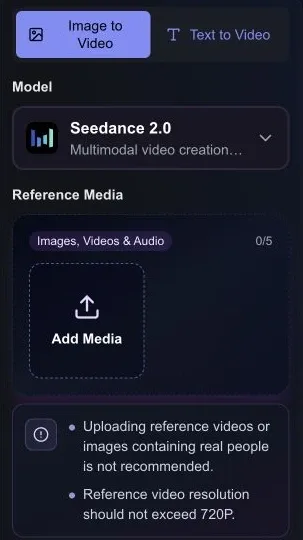
Lanta is a relevant option when the job is animating an image, choosing an available video effect, or preparing a still image. Choose by the task and the controls you need; an Unlucid preset, model, or Gem balance does not carry across.
Animate a photo with a prompt
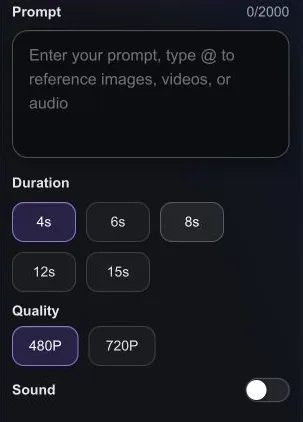
Start in Lanta's image-to-video tool. Upload the image, choose an available model, and describe the motion. Duration, resolution, input requirements, and credit cost depend on that model.
Explore image-to-videoApply a named effect
Browse Lanta's video effects and choose an existing template that fits your image. Compare the preview and input requirements; a similar category does not mean the same preset or result.
Browse video effectsEdit the image first
Use Lanta's image generator and editing workflow when the still needs a change. Check the selected model's reference-image controls. This does not imply feature parity with Unlucid's Smart Edit or Simple Edit.
Open image toolsStay with Unlucid when a particular effect or image-editing workflow fits your goal. Try Lanta when you want to make a prompt-led short clip or use an effect already available there. Neither a credit bundle nor a tool switch guarantees an acceptable result: start small and judge the exported clip.
Animate an image with Lanta AICommon questions
Can I turn a Smart Edit result into a video?
Treat this as two jobs: edit the still, then use that image as the input to Video AI or an effect. Check the edited image before animation, and budget for both operations. An image edit by itself does not create motion.
Can I use Unlucid as a full video editor?
The image-to-video and preset workflows described here create short clips. If your project needs several clips, precise cuts, titles, or a soundtrack, plan a separate editing step unless the selected tool explicitly provides those controls.