
Viewmax (Now Everygen) Review: Features, Workflows, and Limits

Viewmax is now Everygen. The old viewmax.io homepage redirects to everygen.ai, the official site operated by Viewmax LLC.
Everygen is a good fit if you make template-based Shorts or need several drafts of a product ad. If you need one custom close-up or cutaway, the general AI Video Generator lets you start from a prompt or an image.
On this page
Which Everygen workflow fits your video?
Scroll sideways to see the full table.
| Workflow | Start with | You get |
|---|---|---|
| AI Video Generator | A shot description or a starting image | A clip for your edit |
| Shorts Studio | A preset format and a line of direction | One vertical clip with sound |
| AI Ad Generator | A product link or product image | A draft product ad |
Generate a single shot
Open the AI Video Generator for a specific shot, such as a close-up of a bicycle light on a workbench. Write a prompt or add a start frame with a model that accepts one. Then set the aspect ratio for your edit and choose from the lengths and resolutions the model offers.
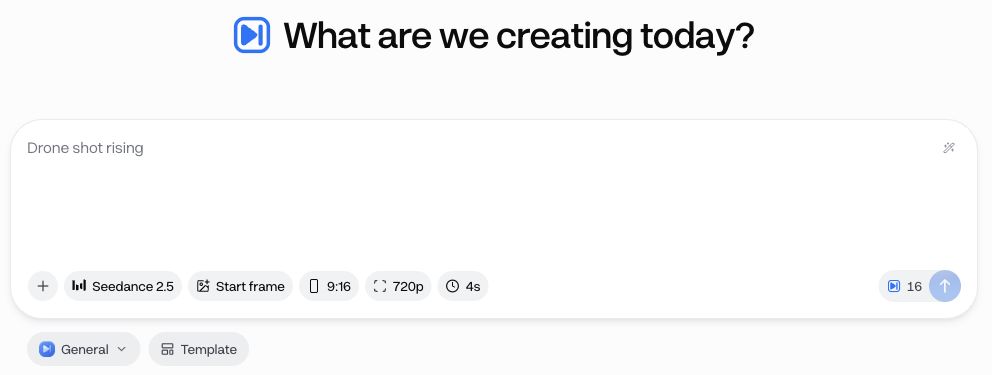
Example prompt for a product close-up
Slide the camera slowly from left to right across the bicycle light. Keep the housing, lens and bracket fixed. Soft workbench lighting, steady focus.
Use a side-on photo with the whole light in frame. Generate a take and play it through. If the mount bends or the lens shifts shape, try a smaller camera move with the same start frame.
Make a vertical clip in Shorts Studio
Use Shorts Studio if you already know the format. Choose a preset such as 3D explainer and give it a line of direction. Everygen turns that direction into a prompt and generates a vertical clip with sound. The tool lists 6–10 seconds at 720p per clip, depending on the format.
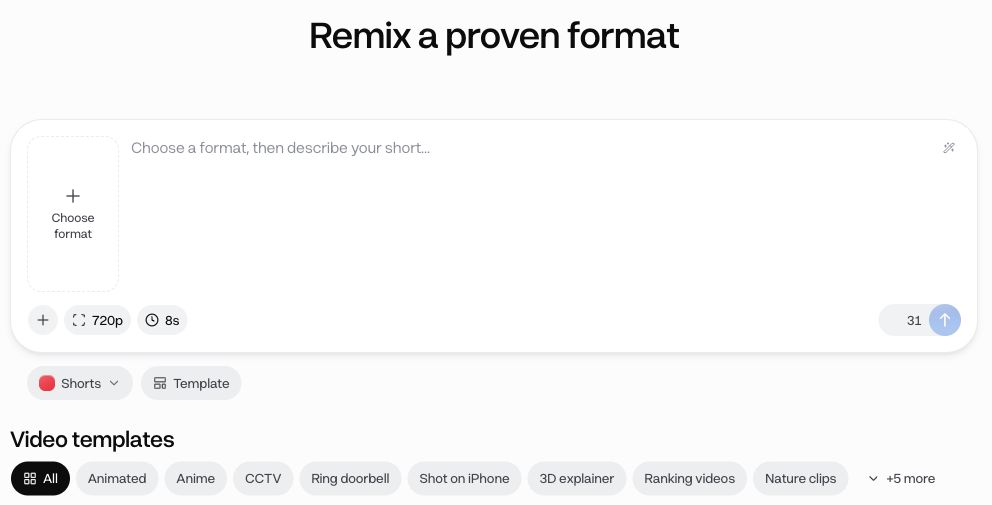
For a bicycle-light tip, use the explainer format to show where the light attaches to the handlebars. If your Short also needs a night-ride shot and a voiceover, plan time to assemble the clips and add the narration.
Draft a product ad
Start in the AI Ad Generator with a product page or image. Choose an ad format, such as a handheld video in the style of user-generated content (UGC), then set the hook, avatar and voice for the draft.
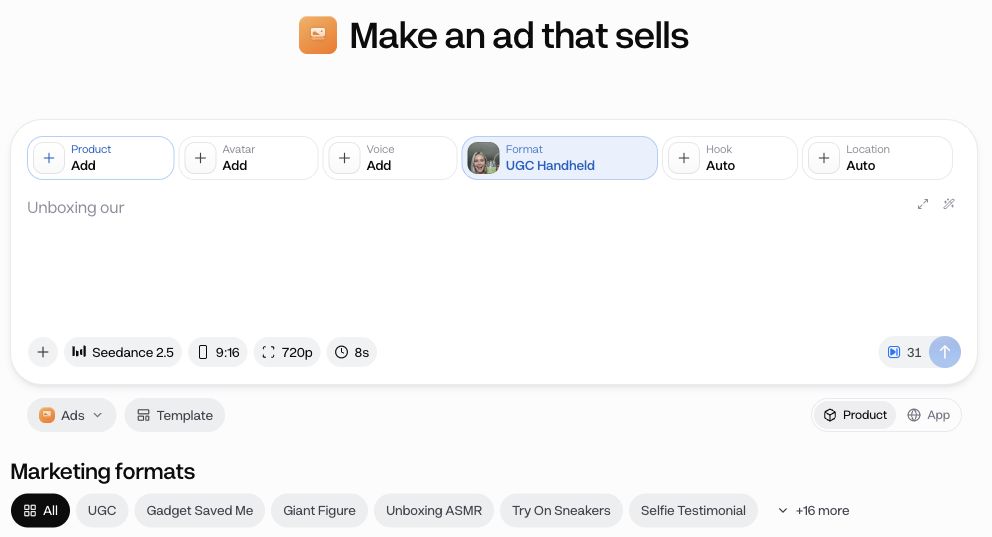
For the bicycle light, try one hook about the handlebar mount and another about riding home after dark. Keep the product and format fixed so you can compare the openings. Before publishing, check the product visuals and any claims about brightness or battery life against the product page.
Everygen pricing and credit limits
As of November 13, 2026, Everygen lists Starter at US$24 billed monthly or US$108 billed once a year (US$9 per month on annual billing). Starter includes 200 credits each month. Check Everygen’s pricing page if you need a specific model at a specific resolution. For example, it lists Seedance 2.5 at 1080p on Pro and Creator.
Generations, voiceovers, captions and exports use credits. The generator shows the cost of your clip before you submit. Unused plan credits expire at the monthly refill, and purchased top-ups last 90 days.
Budget for more than one take
Everygen lists a four-second 720p Seedance 2.5 clip at 16 credits. Allow 48 credits for three attempts at those settings, about a quarter of Starter’s monthly allowance. Add any caption and export costs to your budget.
When to use Lanta AI
Use Lanta AI for a clip you plan to place in an existing edit. Choose Image to Video to animate a product photo or Text to Video to make a shot from a description. Pick a model that supports the framing and length you need.
If you’ve already cut the bicycle-light demo, use Lanta to make the missing close-up. If you still need to develop the hook, choose a presenter and add a voice, start in Everygen’s ad workflow.
Generate a video clip with Lanta AI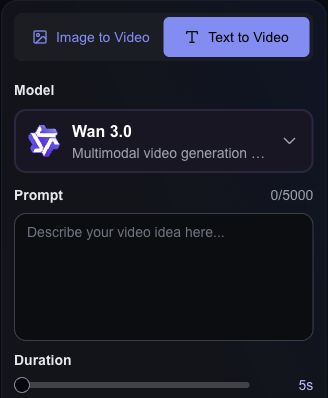
Frequently asked questions
Can I still use my Viewmax login?
Everygen says existing Viewmax users could sign in the same way after the rename and that projects, credits and subscriptions carried over. See Everygen’s rebrand announcement.
Can I add captions to footage I already have?
Yes. Upload a clip to Everygen Auto Captions to transcribe speech, correct the text and export a captioned MP4. The tool lists a two-minute and 100 MB limit.
Use one clear action and a specific camera move to describe the shot you want.