
Landscape to Portrait Video Converter AI
Convert horizontal videos into vertical 9:16 clips with Lanta AI. Upload a landscape video and turn it into a portrait video in minutes. AI helps reframe the shot, keep the main subject in view, and create a mobile-friendly version without awkward crops, black bars, or stretched footage.
AI Reframe Video
Why Choose Lanta AI Landscape to Portrait Video Converter?
One-Click Horizontal to Vertical
Save up to 70% editing time. Turn horizontal videos into vertical clips with one click. No manual cropping, resizing, or frame adjustment.
AI Smart Crop
AI goes beyond center cropping. It intelligently reframes each shot to keep the main subject in view.
Moving Subject Tracking
AI follows moving people, products, and key actions, keeping them in frame from start to finish.
No Black Bars, No Distortion
Automatically adjust framing, scale, and layout so your video fits a tall canvas naturally.
HD Quality
Every frame looks sharp and clean. Keep your video clear, crisp, and full of visible detail after conversion.
AI Video Outpainting
Fill missing areas with AI-generated background that blends naturally with the original scene.
Caption & Text Protection
Keep subtitles, logos, and on-screen text visible inside the vertical frame.
Batch Convert
Convert multiple landscape videos into portrait clips at once and save more editing time.
Multi-Format Export
Turn one source video into multiple aspect ratios, such as 9:16, 16:9, 1:1, 4:3, and 3:4.
Introducing Landscape to Portrait Video Converter on Lanta AI
With Lanta AI’s Landscape to Portrait Video Converter, the perfect social-ready frame is always within reach—even if your original video was shot horizontally. With AI Reframe, you can quickly turn landscape videos into portrait formats, keep the main subject in view, and create polished clips for TikTok, Reels, Shorts, and mobile ads. Watch your horizontal footage transform into vertical videos.
Follow the subject as it moves
With Lanta AI Reframe, simply upload a video and let AI analyze the video frame for people, faces, products, and actions. AI identifies what matters most and rebuilds the frame around it.
As the subject moves across the scene, AI Reframe automatically adjusts the framing to keep the key action in view. Reduce manual crop adjustments and keyframing, and cut editing time by up to 70%.
Extend the frame with AI-generated background
When a new aspect ratio needs more space, Lanta AI extends the video background instead of simply zooming in or adding black bars. AI fills the missing areas naturally, so your video looks clean in portrait, landscape, and square.
Convert Landscape Videos to Portrait with Ease
Resizing videos for social platforms does not have to mean awkward crops or black bars. Upload your footage, choose the aspect ratio you need, and Lanta AI Reframe turns landscape videos into natural, focused portrait clips.
Whether you are creating your first short video or preparing multiple social versions, AI Reframe keeps the subject in frame, reduces manual cropping, and helps you create publish-ready content faster.
Landscape to Portrait Video Converter on Lanta AI vs. Traditional Video Crop
See why creators and editors choose AI Reframe over manual video cropping.
Subject Tracking
Keyframing
Social Formats
Framing Work
Editing Speed
Final Polish
How to Convert Landscape Video to Portrait with AI
Convert your source video into the aspect ratio you need in three simple steps.
Step 1: Upload Your Source Video
Add your source video to Lanta AI. We support MP4, MOV, and WebM files up to 100MB.
Step 2: Choose Video Aspect Ratio
Select the output format you want, such as 9:16, 4:3, 3:4, or 1:1. You can convert landscape videos to portrait, or turn portrait videos into landscape formats.
Step 3: Generate and Download
Click Generate and let AI reframe your video automatically. Preview the result, download your final video, and publish it across your favorite platforms.
Use Cases for Landscape to Portrait Video Converter AI
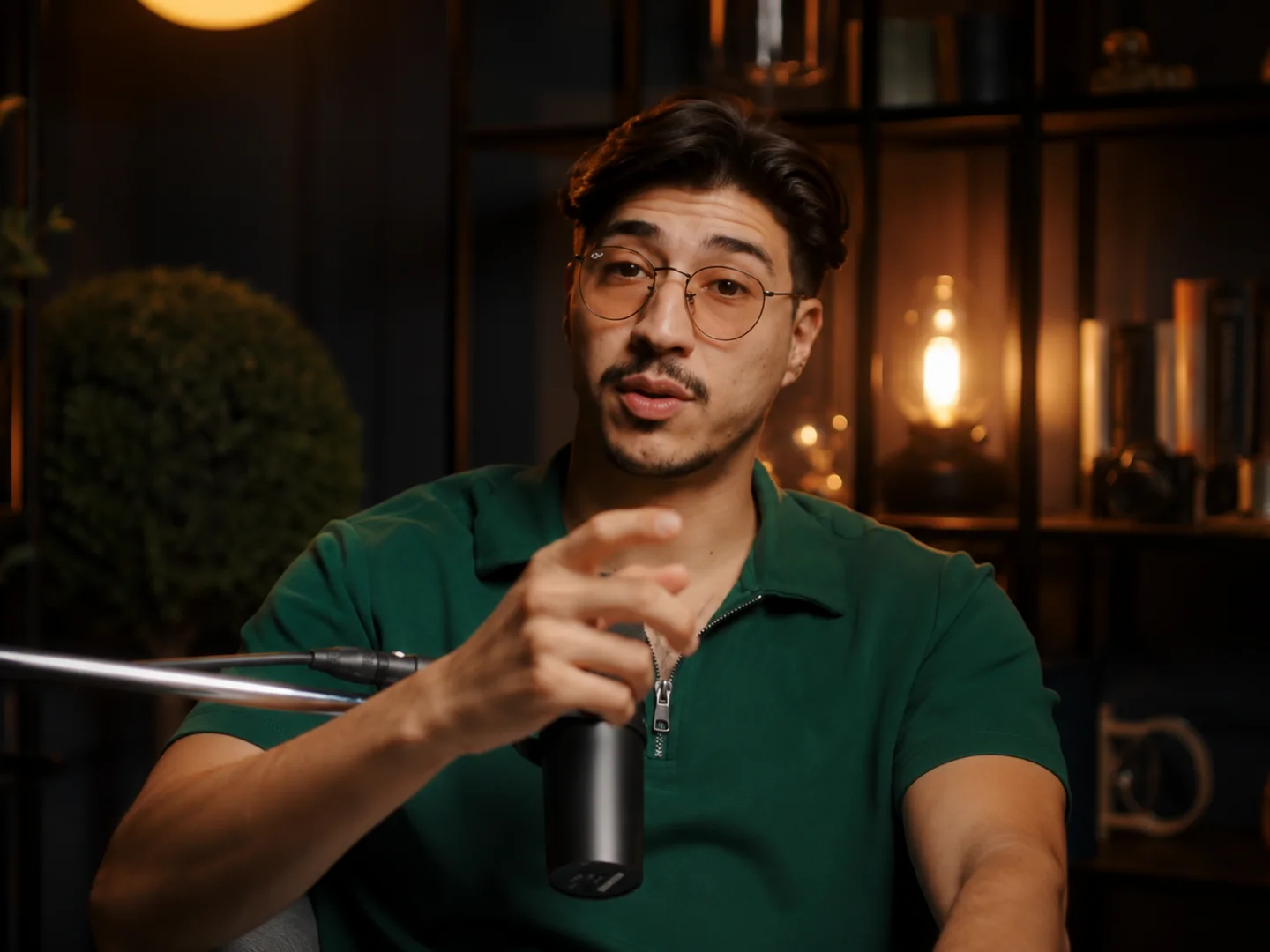
Talking Head
Keep the speaker centered and in focus. AI Reframe automatically locks onto the face and upper body, turning horizontal talking-head videos into vertical short-form clips in one click.
Convert talking-head clips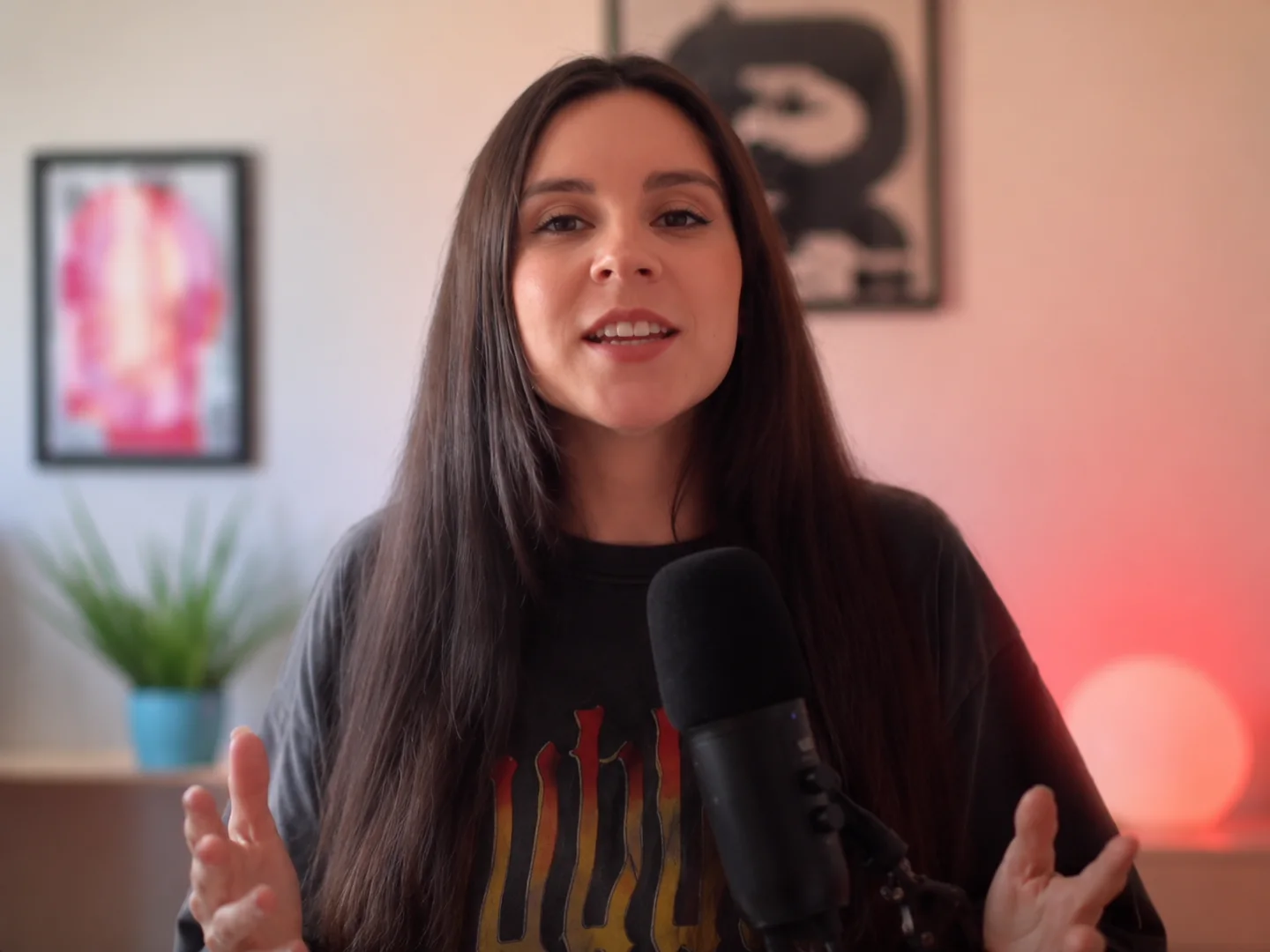

FAQ
How do I convert landscape video to portrait?
Can I convert a landscape video to portrait without black bars?
What is the difference between an AI landscape video to portrait converter and a regular crop tool?
How long does it take to convert a landscape video to portrait?
Do I need to reshoot for Shorts or Reels?
Can AI extend the video frame?
Can I convert portrait video to landscape on Lanta AI?
Can I download without a watermark?
Can it batch convert videos on Lanta AI?
Can it output 3:4, 4:3, and 4:5?
Convert Landscape Videos into Portrait Clips with AI
Turn your horizontal footage into vertical content for TikTok, Reels, Shorts, and mobile ads. Reuse your best videos and make them fit the mobile screen.