Lanta AI LogoLanta AI

Free Online Image To Image AI Generator

Turn a photo or sketch into a new image with a text prompt. Change a portrait's style, replace a product background, or render a drawing with Lanta AI's choice of Image To Image models.

Photo to PhotoMultiple AI ModelsPrompt-Guided Edits

AI Image Generator

0/10

Reference Photos, New Results

Image To Image Examples: From Reference to Result

See a portrait restyled, a hairstyle changed, an old photo repaired, and two references combined. Each pair shows the source and result, with a prompt idea for a similar edit.

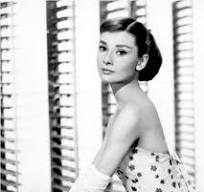
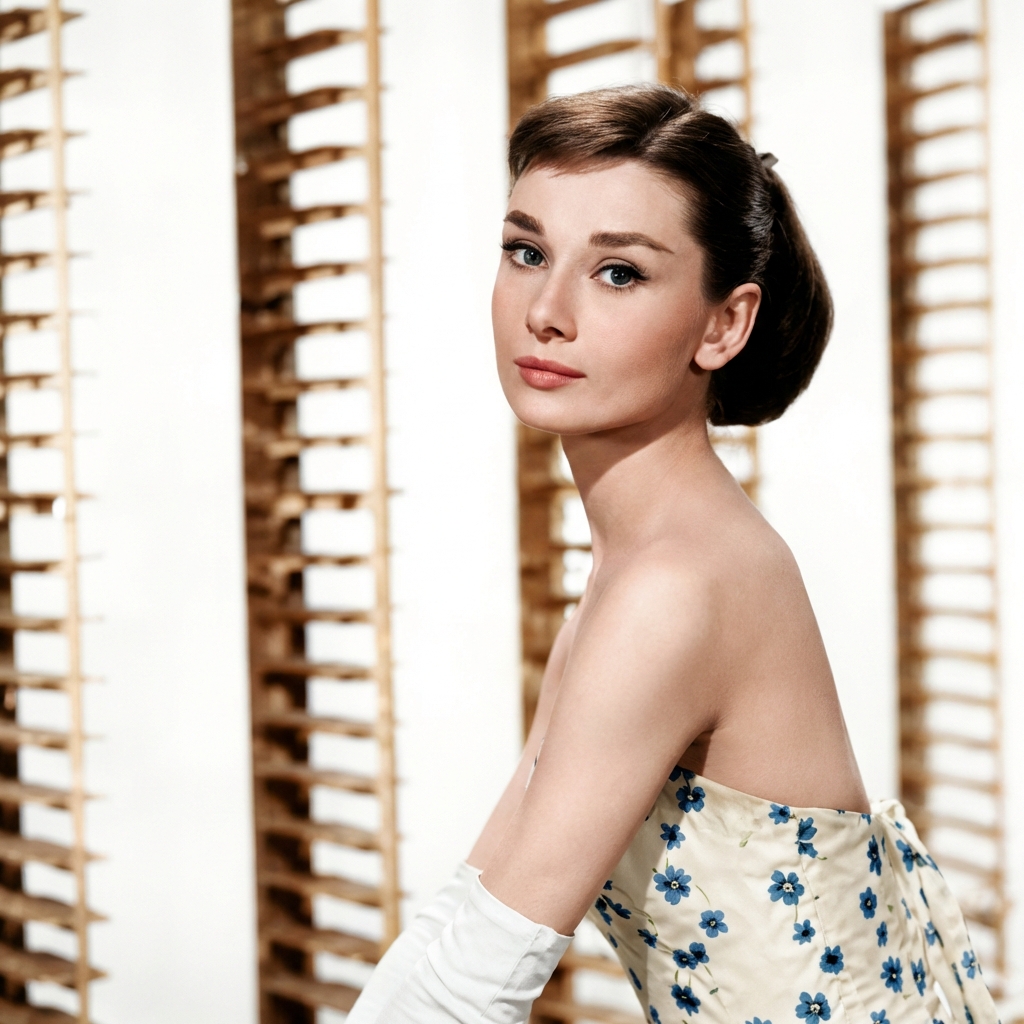
Reference01
Portrait reference before an Image To Image style transformation
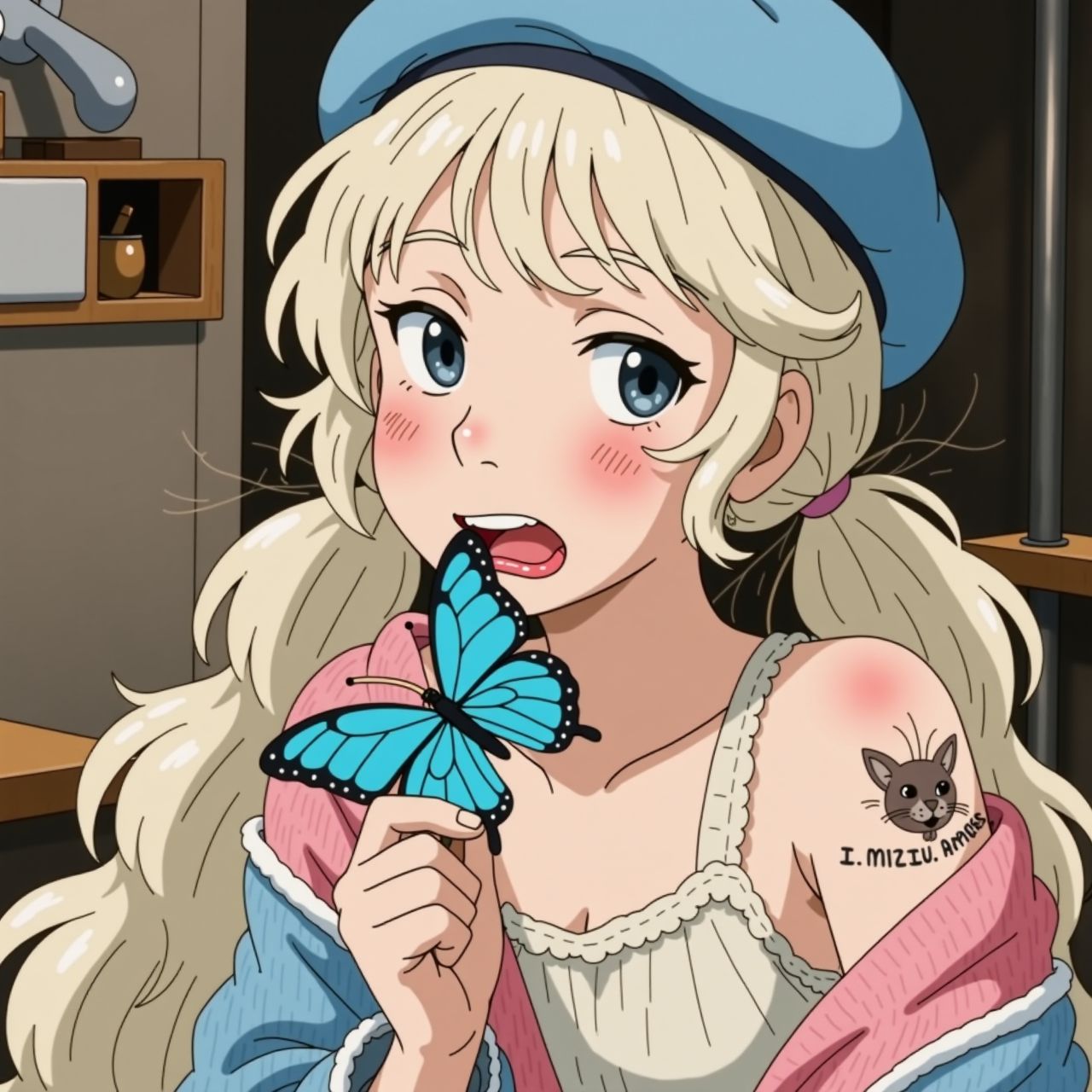
Generated result
Storybook-style portrait generated from the reference image

Turn a Portrait Into an Illustration

A portrait becomes a storybook illustration while the source supplies the pose and composition. Describe watercolor washes, fine ink lines, and warm light to guide the new finish.

Prompt idea

Keep the person, seated pose, camera angle, and surrounding composition. Reinterpret the scene as a hand-painted storybook frame with soft watercolor backgrounds, warm afternoon light, and delicate ink details.
Reference02
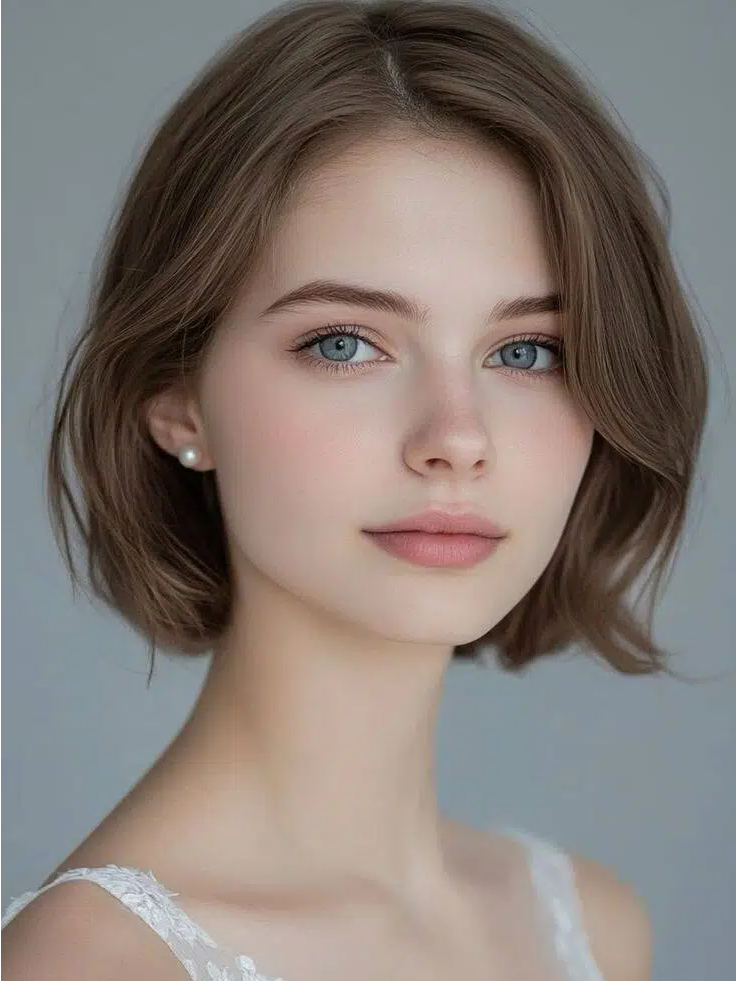
Portrait with straight hair used as an Image To Image reference
Generated result
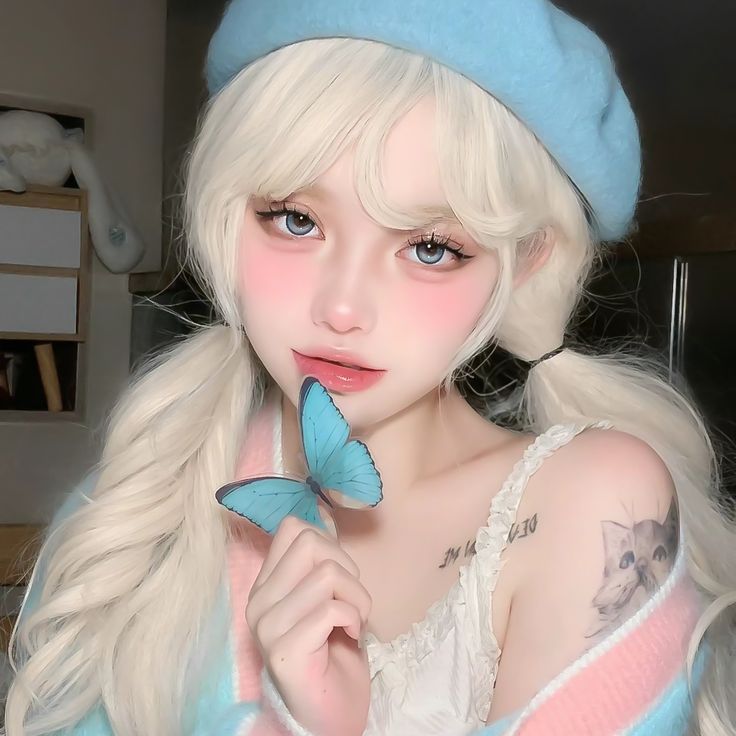
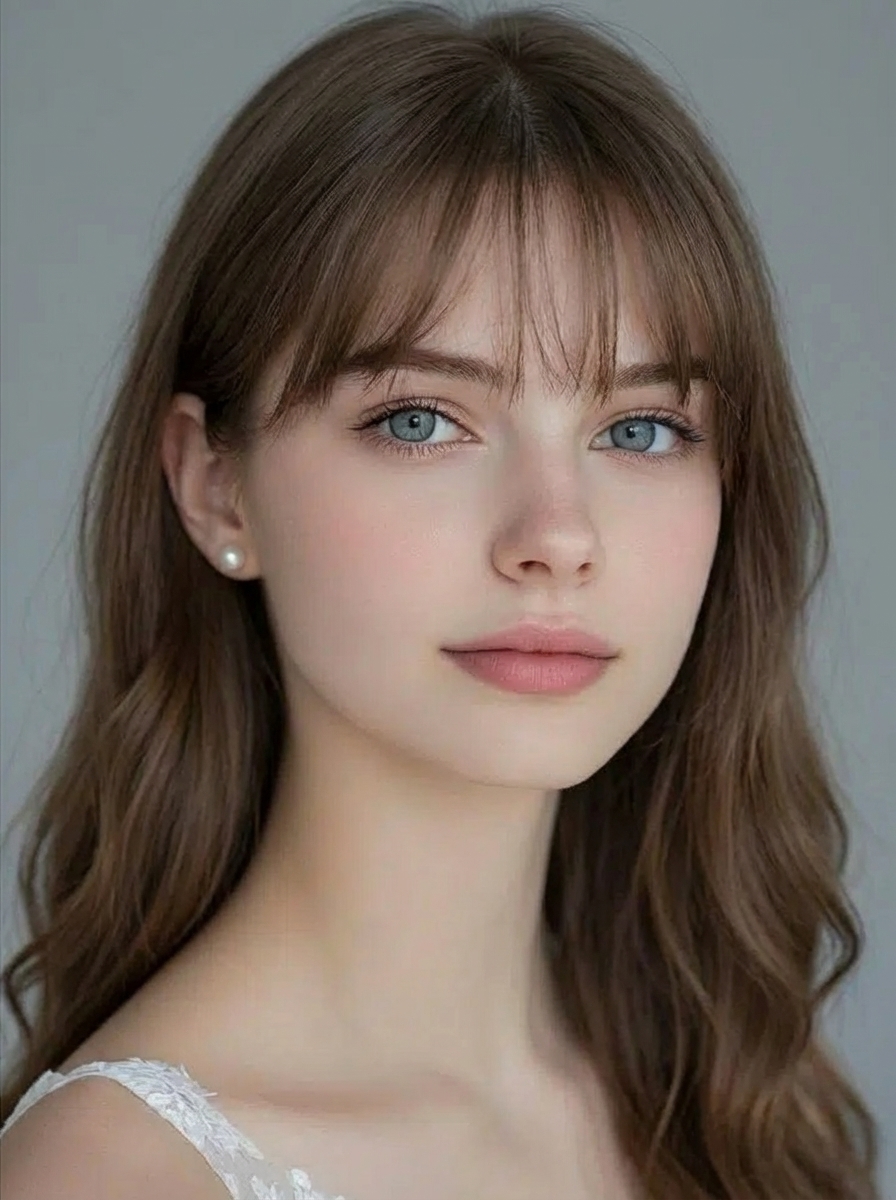
Portrait variation with Korean air bangs and soft waves

Try a New Hairstyle From a Photo

See how bangs and soft waves change a portrait. The source photo gives the model a reference for the face, clothing, and crop while your prompt focuses on the hair.

Prompt idea

Keep the face, expression, clothing, shoulder position, background, and portrait crop. Replace the straight hairstyle with soft Korean air bangs and loose shoulder-length waves in the same hair color.

Reference03
Faded vintage portrait used as a restoration reference
Generated result
Restored portrait generated from the faded reference photo

Restore a Faded Portrait

Generate a cleaner version of a scratched or faded photograph. Ask for repaired surface marks and balanced contrast, using the original portrait as a reference for faces, clothing, and framing.

Prompt idea

Keep the people, clothing, expressions, and original framing. Repair visible scratches and faded areas, balance the contrast, recover facial detail, and preserve the character of the old photograph.

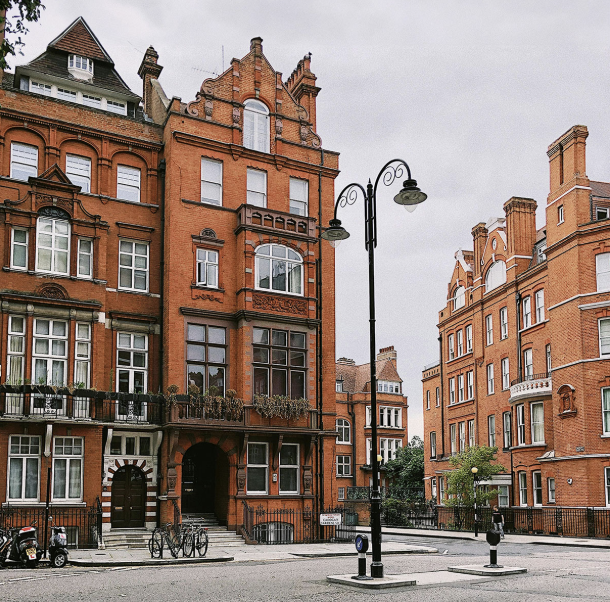
References04
First visual reference for a multi-image generationSecond visual reference for a multi-image generation
Generated result
Single generated composition guided by two reference images

Create One Image From Two References

A single source may not show every detail you need. Add a second reference for a shape, material, or color, then describe how the two should come together in one generated image.

Prompt idea

Use the main subject from the first image and the visual details from the second. Create one connected composition with consistent perspective, lighting, scale, and shadows. Do not add text.

Start With an Existing Image

What Is Image To Image AI?

Image To Image AI generates a new image from an uploaded photo, drawing, or other visual reference. The source gives the model a subject, pose, layout, or color palette to work from. Your text prompt describes the changes, such as a different background, outfit, art style, or lighting.

Unlike text-to-image generation, you do not have to describe the whole scene from scratch. Unlike a photo filter, Image To Image can redraw objects and reinterpret the scene. That also means faces, lettering, and fine details may change, so check the result against your original.

From Upload to Download

How to Use Lanta AI Image To Image

Upload the image you want to work from, describe the edit, and choose your generation settings.

01

Upload Your Source Image

Start with a portrait, product photo, sketch, or illustration. Choose a clear source where the subject and any details you want to reuse are easy to see.

02

Describe the Changes

Tell the AI what the new image should show. For example: change the jacket to blue, keep the seated pose, and replace the wall with a garden.

03

Choose a Model and Image Size

Select an Image To Image model, then pick an available aspect ratio and resolution. Check the credit cost on the Generate button before submitting.

04

Generate and Download

Open the generated image to inspect it at full size, then download it. To try another version, use Redo from your history and adjust the prompt or model.

More Ways to Use Your Photos

What Can You Create From Your Image?

Use Image To Image to change the part of a picture that no longer fits your idea. Start with the subject you already have and explore another style, setting, or design.

Turn Photos Into AI Art

Try a watercolor portrait, an ink drawing, or a painted landscape from your own photo. The reference gives the model a starting composition; your prompt sets the medium, colors, and texture.

Create New Product Scenes

A plain packshot can become the starting point for a campaign concept. Place the product on stone, linen, or a studio plinth, and describe the background, reflections, and shadows. Check labels and packaging before publishing.

Turn a Sketch Into a Render

Upload a line drawing and ask for the materials it does not yet show: brushed metal, glazed ceramic, stitched fabric, or painted wood. Use its outline to guide a more finished design concept.

Try Different Outfits in a Portrait

Change a jacket, fabric, color, or accessory using the original portrait as a reference. Ask to retain the face and pose, then review the generated clothing and facial details together.

Make Variations of the Same Photo

What would the scene look like at dusk, in winter, or under studio lighting? Generate separate versions from one source to explore the differences without arranging another shoot.

Explore a New Look for a Room

Use a room photo to test wall colors, furniture, rugs, and lighting. Name the windows and layout you want to retain; treat the result as a visual concept, not an exact architectural plan.

Your Image, More Ways to Edit

Why Choose Lanta AI for Image To Image?

Lanta brings reference uploads, model selection, and generation history into one workspace. Test a new look for the same image, add another visual reference, or return to an earlier edit.

Try Different Models on the Same Image

A portrait restyle and a product mockup call for different results. Choose from Seedream, GPT Image, Nano Banana, Qwen, Wan, and FLUX to see how each interprets your source photo and edit request.

Give Each Reference a Different Role

Your subject may come from one photo while the material or color comes from another. On models that accept multiple images, upload both and describe which details to borrow from each.

Reuse an Edit From Your History

You do not have to rebuild a previous request. Redo loads its reference images, prompt, and settings back into the generator, so you can change the background, try another model, or refine one detail.

Choose How Your Image Is Generated

Image To Image Models and Output Settings

Reference limits, image shapes, and resolutions vary by model. Choose the settings that fit the photo you are uploading and the image you want to create.

One Reference or Several

Models accept different reference counts, with limits ranging from one to ten images. The uploader changes to match your selection; multiple references guide one result rather than a batch of separate edits.

Portrait, Square, or Landscape

Choose from the selected model's ratios, such as 1:1 for a square image or 9:16 for a vertical visual. Set the output shape before generating rather than relying on a crop afterward.

Resolution Up to 4K

Some models offer output resolutions up to 4K; others have fewer size options. A larger output does not guarantee that tiny lettering or facial details will match the source.

Credits Shown Before Generation

The Generate button displays the cost for the current model and resolution. Check it again after changing settings, especially when trying several versions of the same image.

Prepare Your Reference Image

Get Better Results From Your Reference Image

Image To Image redraws the scene rather than locking the original pixels. Give the model a clear source and a focused edit, then compare the generated result with the photo you uploaded.

  • Use a photo where the face, product, or object you want to edit is clearly visible. Heavy blur and cropped details give the model less to work from.
  • Name what should stay, such as the pose, product angle, or room layout, alongside the change you want.
  • When adding several references, explain which image supplies the subject and which supplies the style, material, or setting.
  • Check faces, hands, logos, and packaging text at full size. A request to preserve a detail does not guarantee an exact match.
  • If the result misses the brief, reuse the request and change one part of the prompt at a time.

Keep your original image. For exact lettering, logo placement, or pixel-level corrections, finish the generated result in a dedicated image editor.

Continue Working With Your Image

Try another image model, combine references, make a targeted edit, or turn your generated image into a video with these related Lanta AI tools.

Image To Image AI FAQ

Answers about free credits, no sign-up, AI image generation from photos, model choices, and reference-image editing.

Yes. Lanta AI gives each user 40 free trial credits to try Image To Image, with no sign-up required. Upload a reference image, describe the change, and choose a model. Each generation uses credits, and the Generate button shows the cost before you submit.

Upload your photo in Image To Image mode, then describe what the new image should look like. Choose a model, aspect ratio, and resolution, and click Generate. Your photo supplies the visual reference; the prompt guides changes to the style, background, clothing, lighting, or other details.

You can claim free credits through Lanta AI's daily check-in, in addition to the initial 40 trial credits. Open the daily check-in option and claim the reward shown there. These credits let you try more edits; the number of images you can generate depends on the model and settings.

No. Free generation uses credits rather than an unlimited allowance. You receive 40 trial credits to start and can claim additional free credits through daily check-in. Check the cost on the Generate button, especially when switching models or increasing the output resolution.

The best choice depends on your source image and the edit you want. Lanta AI offers models from Seedream, GPT Image, Nano Banana, Qwen, Wan, and FLUX. Try the same reference and prompt with different models, then compare the result for the details that matter: faces, product shape, materials, or art style.

Describe the change and name the parts of your reference that should stay. For example: keep the person and seated pose, replace the room with a garden, and add soft afternoon light. Specific objects, colors, and materials give the model a clearer instruction than a phrase such as make it better.

A clear reference helps guide the model toward the same face, pose, or product shape, but it does not lock those details. State what should remain unchanged and inspect the output at full size. Faces, logos, lettering, and packaging can still differ from the original.

Yes, when the selected model accepts multiple references. Upload both images and explain what each contributes, such as the product from the first photo and the material or color from the second. The model generates one composition guided by both references, rather than an exact cut-and-paste merge.

Yes. Upload a sketch and describe the materials, colors, and lighting for a finished render, or use a photo as the starting point for a watercolor, ink, or painted illustration. The source guides the subject and composition while your prompt sets the new treatment.

Some Lanta AI models offer output resolutions up to 4K. Select a model and check its resolution menu before generating. A larger image can give you more room for display or cropping, but it does not guarantee that small text or facial details will match your source.

Start with a clear photo, sketch, illustration, or scanned image. Each file can be up to 10MB and must not have an aspect ratio wider or taller than 2.5:1. Reference limits vary by model, from one to ten images; the uploader shows the limit for your selection.

Image To Image uses an existing photo or drawing plus a text prompt. Text-to-image starts from a written description alone. Choose Image To Image when you already have a subject, pose, composition, or design you want to build on; use text-to-image when you want to start without a visual reference.

Commercial use depends on Lanta AI's current terms, the selected model's terms, and your rights to the source images. Only upload material you own or have permission to use. Review the applicable terms and check the finished image for logos, text, and other details before publication.
Lanta AI logo

Create Your Next Image From a Photo

Upload a portrait, product shot, or sketch. Describe the edit and try it with a Lanta AI Image To Image model.