Lanta AI LogoLanta AI

AI Beard FilterFind a beard that feels like you

Curious how you would look with a beard? Upload a photo and use Lanta AI's beard filter to try stubble, a short beard or a goatee. Compare the shape and coverage on your own face before growing it out or reaching for the trimmer.

Try a beard on your photo

0/10
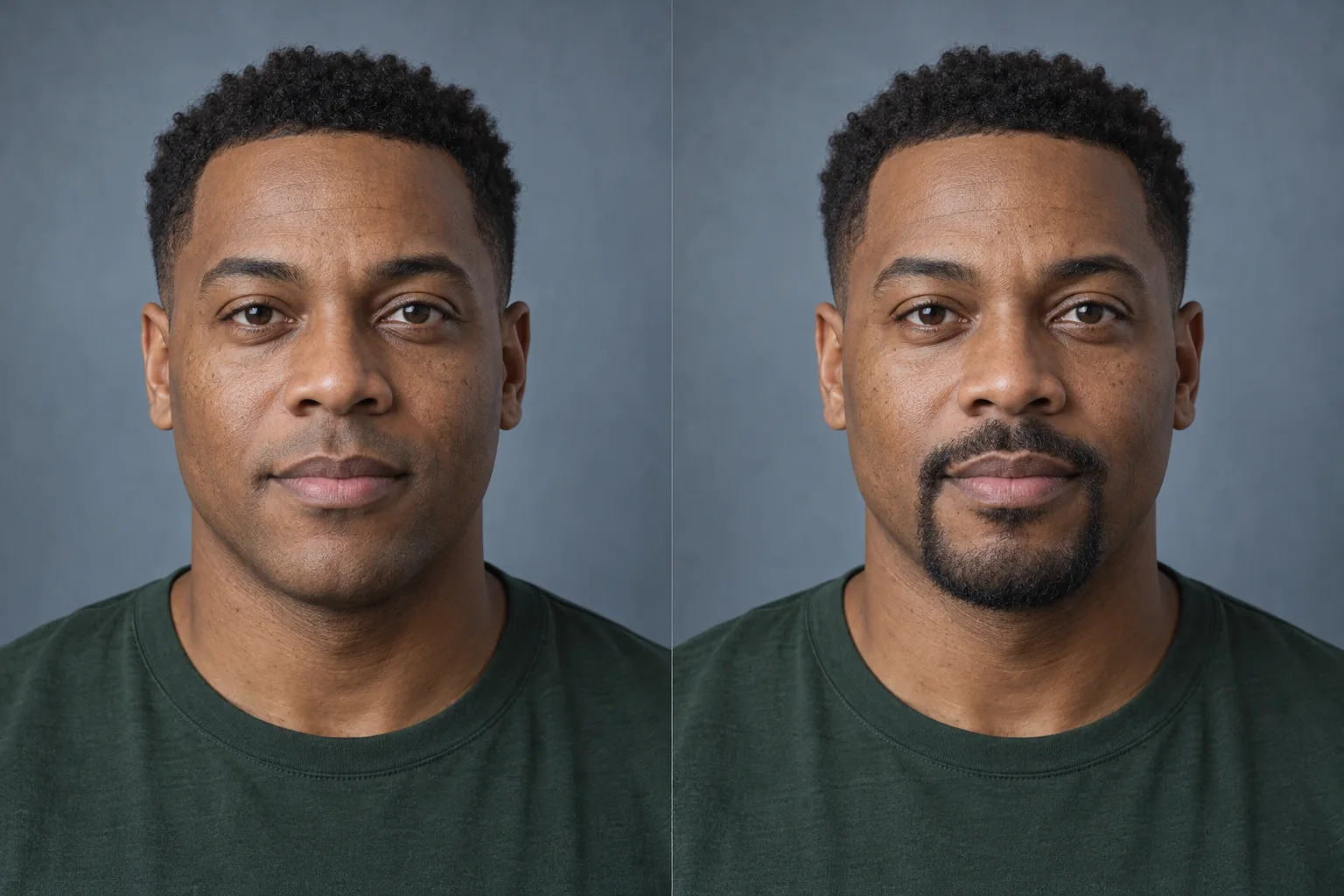
AI illustration: a clean-shaven man on the left and the same face with a short boxed beard concept on the right
Original lookBeard concept

Choose your beard filter style

Start with the amount of coverage you want. These AI style illustrations show how each option changes the look. Use a prompt idea below, then adjust it for your own photo.

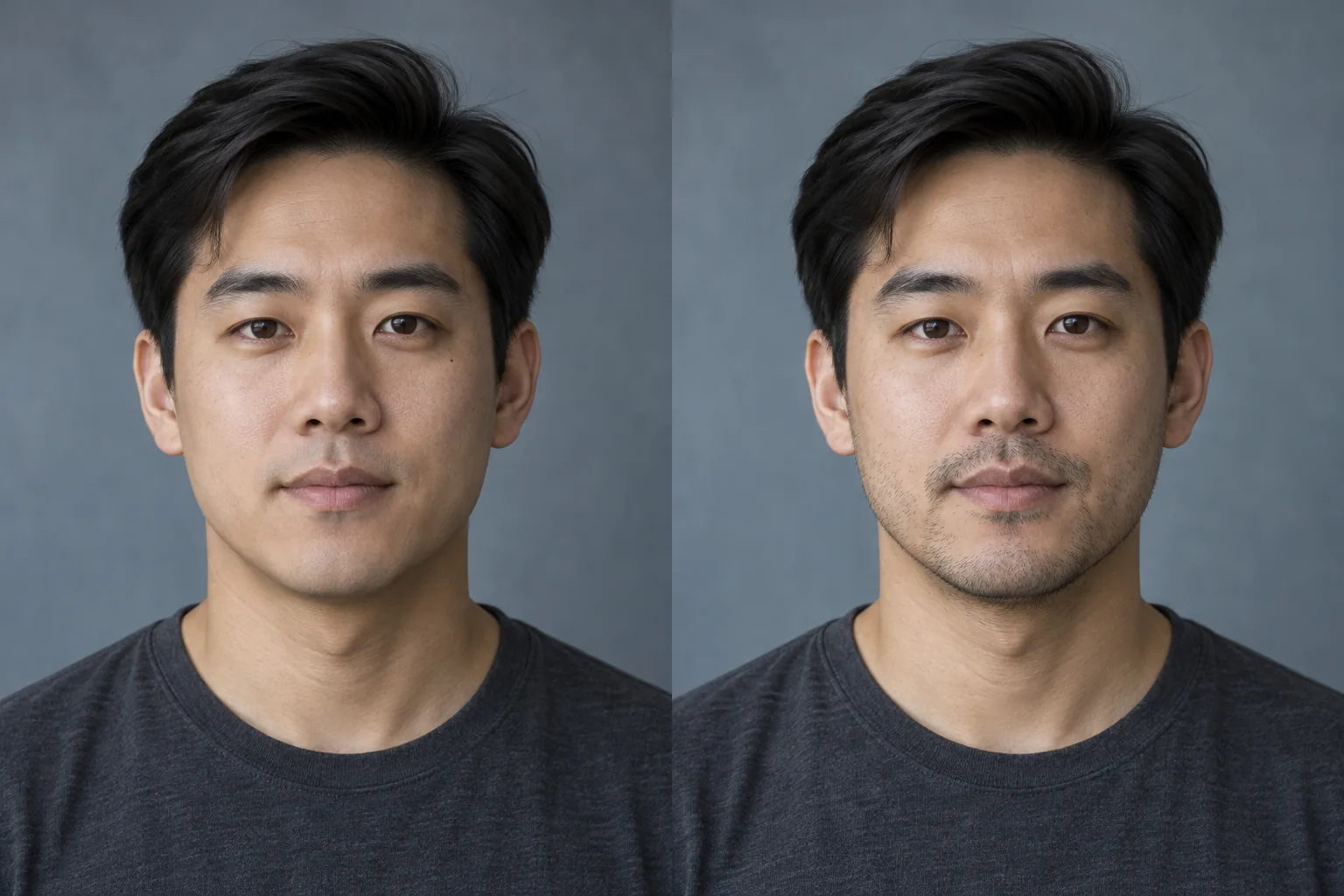
AI illustration of the same man clean-shaven on the left and with light stubble across his jaw and upper lip on the right
Original lookStyle concept

Light stubble

A little texture, with most of your skin still visible. Start here if you want to compare a clean-shaven face with a less dramatic change. Check that the cheek edges stay soft.

Prompt idea

Add light, short stubble to my cheeks, chin, jaw and upper lip. Keep plenty of skin visible between the hairs, with soft natural edges. Match my existing hair color.
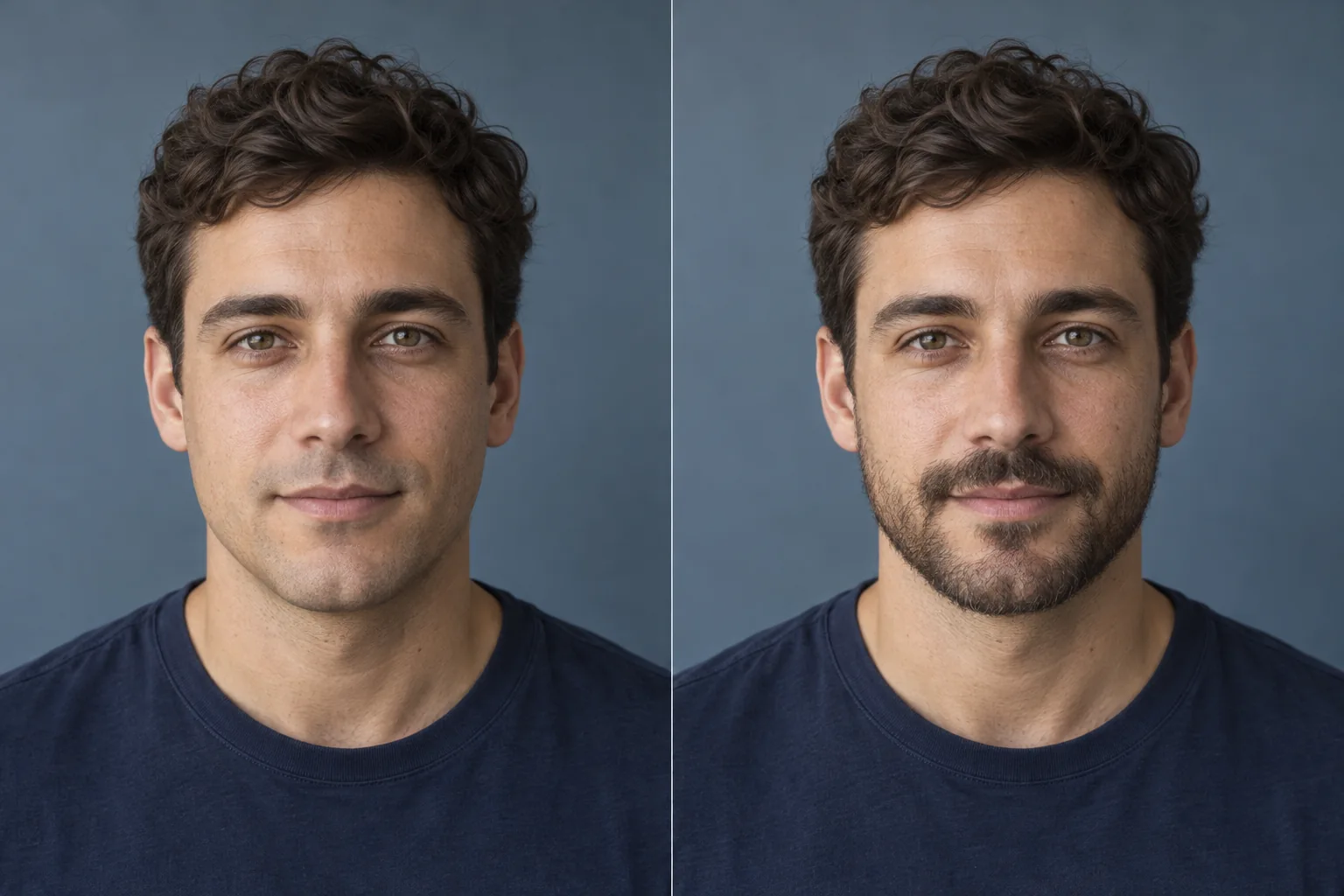
AI illustration of a clean-shaven man on the left and the same man with a short dark beard and connected moustache on the right
Original lookStyle concept

Short boxed beard

More coverage around the jaw, with a trimmed outline. Compare the width at the sides and the length below your chin. Ask for less density if the result looks like a solid dark block.

Prompt idea

Give me a short boxed beard with a connected, neatly trimmed moustache. Keep the sides close, the cheek line natural and the neckline tidy. Use moderate density and individual hair texture.

AI illustration of the same man clean-shaven on the left and with a connected goatee and moustache, with clear cheeks, on the right
Original lookStyle concept

Goatee and moustache

Concentrate the hair around your mouth and chin while leaving the cheeks clear. This is a useful comparison when a full beard feels too wide. Look closely at the connection beside each mouth corner.

Prompt idea

Add a short connected goatee and moustache around my mouth and chin. Leave both cheeks and the sides of my jaw clean-shaven. Keep my lip shape visible and the edges softly defined.

How to add a beard to your photo

Use the beard filter on one clear portrait. Keeping the same source photo makes each style easier to judge.

  1. Step 1

    Upload a clear portrait

    Choose a front-facing photo with your cheeks, upper lip and chin visible. Soft daylight helps separate skin from facial hair. Avoid hands over your mouth or a collar hiding your jaw.

  2. Step 2

    Choose the look

    Use a style prompt or describe the length, density and color you want. If an earlier edit is still in the form, select a style to replace its prompt. Check the model, settings and credit cost before generating.

  3. Step 3

    Compare, refine and save

    Open the result and inspect the cheeks, mouth corners and neckline. Try one change at a time, such as shorter sides or lighter coverage. Download the version you want to keep.

Why choose the AI beard filter on Lanta AI?

Lanta AI's beard filter lets you explore the look you've been curious about, from subtle stubble to a fuller beard. Start with your own photo and free credits to see what suits you.

  • Natural-looking facial hair

    Preview a beard with individual hair texture, soft cheek lines and a shade that suits your portrait. Our style prompts are designed to preserve your facial features and lighting, helping the new look feel like you.

  • From light stubble to a full beard

    Compare light stubble, a short boxed beard or a goatee using the ready-made style prompts. Want a fuller beard, a moustache or a salt-and-pepper look? Describe it in the editor and adjust the length, density or color.

  • Free to try, no sign-up

    Start with 40 free credits and try the beard filter before creating an account. Each preview uses credits based on the model and settings, with the cost shown before you generate.

What would I look like with a beard?

A beard filter is most useful when you compare specific details. Instead of asking whether a beard is simply better, look at what changes around your mouth, cheeks and chin.

  • Compare width and length

    Fuller sides add visual width; more hair below the chin adds length. Generate a close-trimmed version and a slightly fuller one from the same photo to see which balance you prefer.

  • Keep your everyday look in view

    Use your usual hairstyle and glasses. A beard simulator is more useful when the rest of the portrait stays familiar. Check that the edit has not also changed your jaw, lips or skin.

  • Separate the idea from real growth

    An AI beard filter can imagine hair where you do not currently have it. It cannot predict your natural density, growth pattern or how long a style will take to grow.

Take a useful reference to your barber

Save your original portrait and one preferred preview. Point out the cheek line, moustache connection and length under the chin. Ask what is practical with your current growth; a picture communicates the direction, but it is not a measured trimming guide.

Compare a Look on My Photo

Make your beard filter preview easier to trust

Look beyond the overall impression. A few small details tell you whether the edit is useful or needs another pass.

Use even light

A hard shadow under the jaw can look like extra hair. If one side comes out much denser, try a portrait with softer light before asking for a thicker beard.

Keep the lips and edges intact

Inspect the mouth corners, sideburns and neckline at full size. If hairs cover the lips or an edge looks painted on, request shorter hair and softer transitions.

Describe color separately

For a grey, ginger or salt-and-pepper beard, say so in the prompt. Specify facial hair only so the request does not also recolor your hairstyle or eyebrows.

Return to the original

Compare different styles from the same unedited portrait. Repeatedly editing an AI result can change unrelated details and make it harder to tell which beard shape you actually prefer.

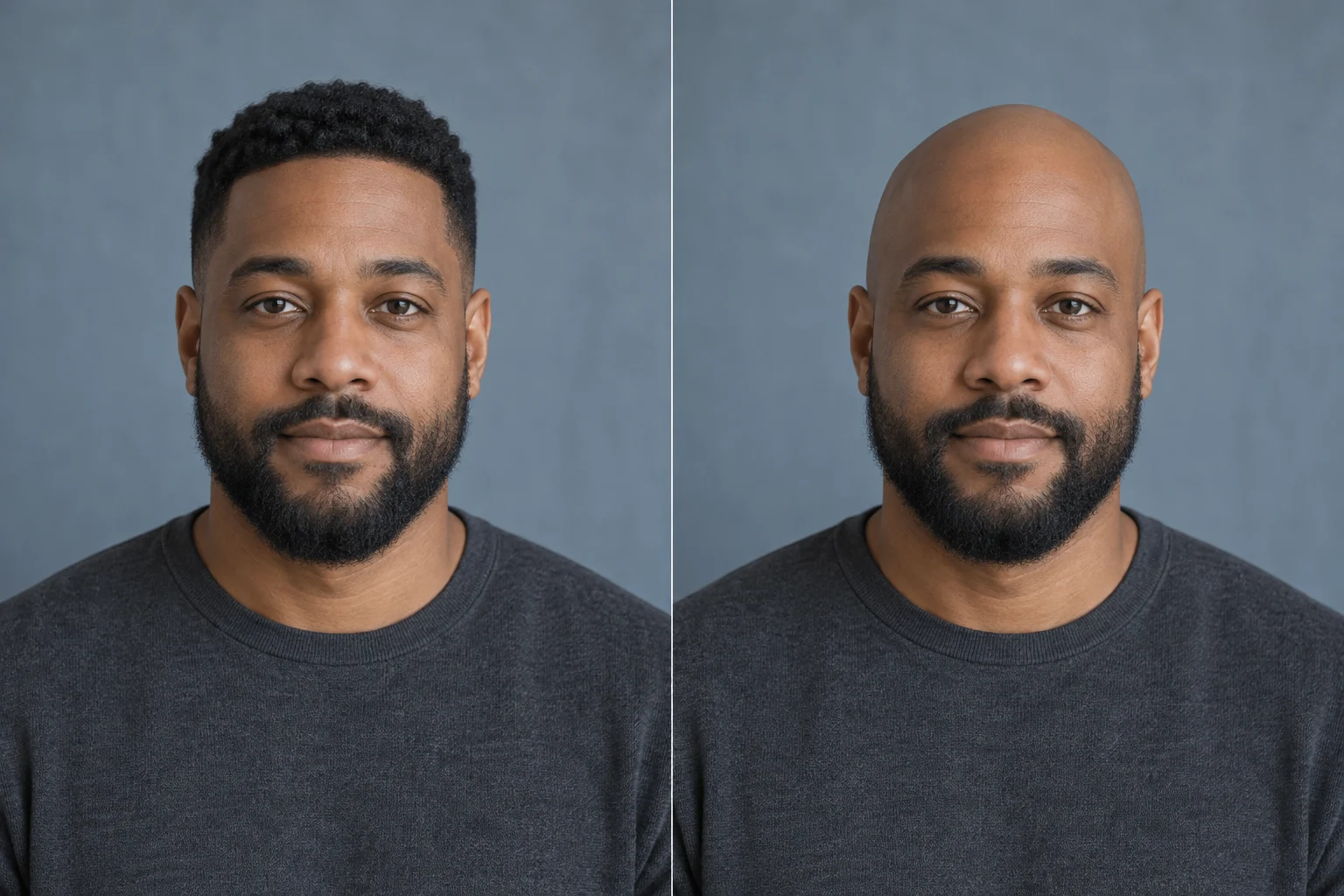
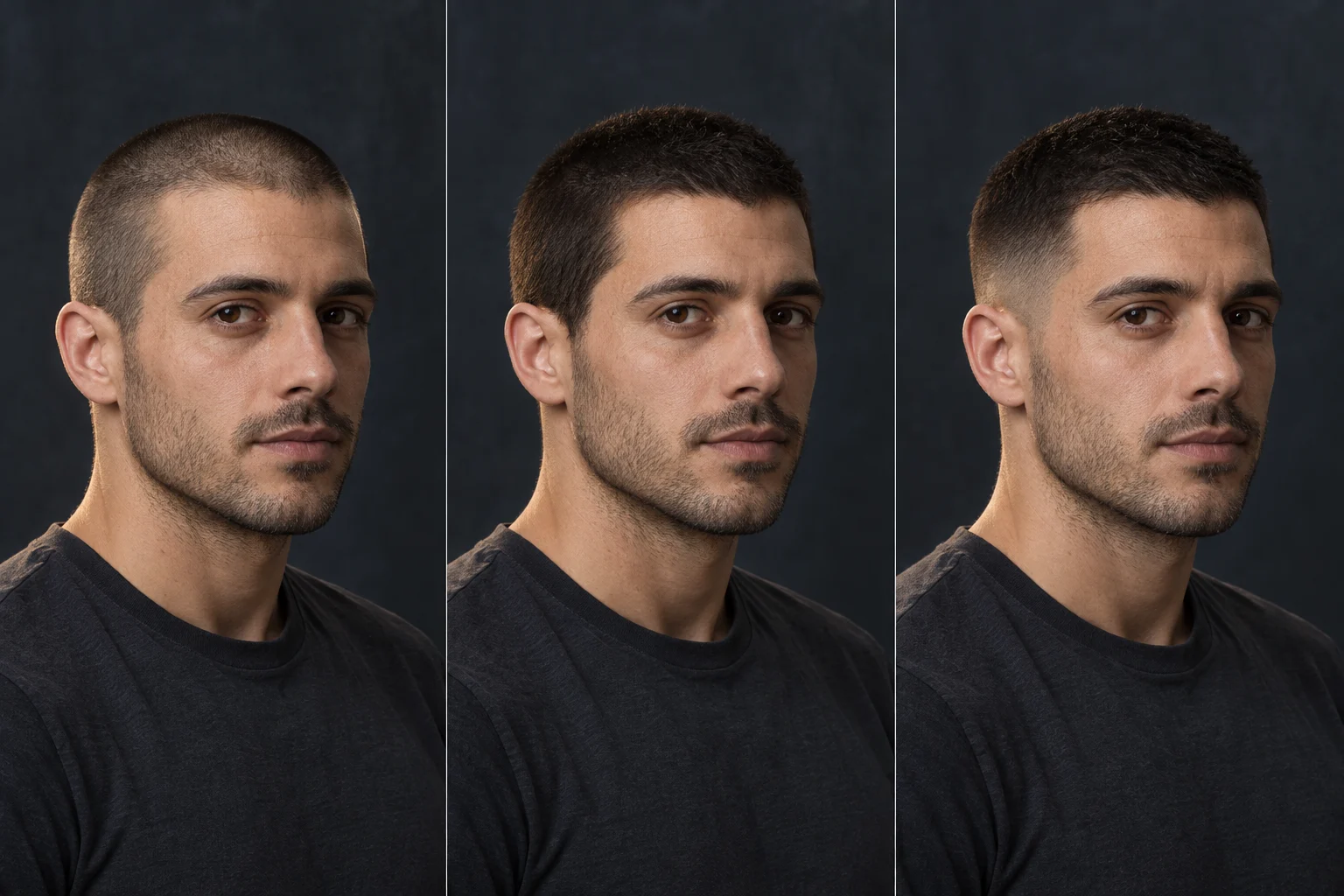
A buzz cut, longer hair or a shaved head can change how your beard looks. Try a few combinations before choosing your next style.

Beard filter questions, answered

A few things to know before choosing your next look.

Yes. You can start with 40 free trial credits without signing up. Each generation uses credits according to your selected model and settings, so 40 credits does not mean 40 images. Check the cost shown before you generate. Daily check-in offers another way to claim free credits; generation is not unlimited.

Yes. Upload a clear portrait and describe the coverage you want, or use one of the style prompts above. The AI adds facial hair to the image, so you do not need an existing beard. The result is a styling preview, not a prediction of what you can grow.

Start with light stubble if you want a subtle comparison, a short boxed beard for more jaw coverage, or a goatee to leave your cheeks clear. Use the same original photo for each version. There is no single best style for a face shape; compare the proportions you prefer.

You can request these variations in the prompt. For a moustache alone, ask to leave your chin and cheeks clean-shaven. For a longer beard, describe the length and shape. Name the color separately and ask to keep your scalp hair unchanged. Results vary with the photo and model.

The style prompts ask to preserve your identity, facial proportions and hairstyle while changing facial hair. That instruction is not a guarantee: generative edits can alter other details. Compare the eyes, nose, lips and jaw with your original before keeping a result.

Yes, you can ask to restyle the existing facial hair. Say which areas should stay sparse and which should change. A dense beard hides some of the face underneath, so a shorter-style preview may involve invented detail. A beard filter cannot diagnose growth problems or show whether patchy areas will fill in.

No. This tool edits an uploaded photo in your browser. It does not install a lens, track your face in live video or apply an effect inside a social app. You can download a finished image and use it in a post.

Open the page in your mobile browser and upload a portrait from your device. JPG, PNG and WebP are supported by the shared uploader; file limits depend on the selected model. Keep one person's cheeks, upper lip and chin clearly visible. Follow the current format and size guidance in the upload control.

They serve different goals. This page focuses on adding or styling facial hair. A no beard filter removes it and has to reconstruct skin that may be hidden underneath. The presets here add a beard; they do not include a dedicated clean-shave mode.

Use a photo of yourself or someone who has agreed to the edit. Review Lanta AI's privacy policy before uploading sensitive images, including the sections on information collection, data use and your rights. For questions about storage or deletion, use the contact details in that policy.
Lanta AI

See the beard before you grow it

Start with one clear portrait. Use the beard filter to compare a style, check the details and save a reference for your next look.